
You can view the video in these few easy steps. Follow the steps below:
Getting Started On How To View Video
Log in to your Facedrip account.
STEP 1: Click on the “agency” menu on the top menu bar of your dashboard.
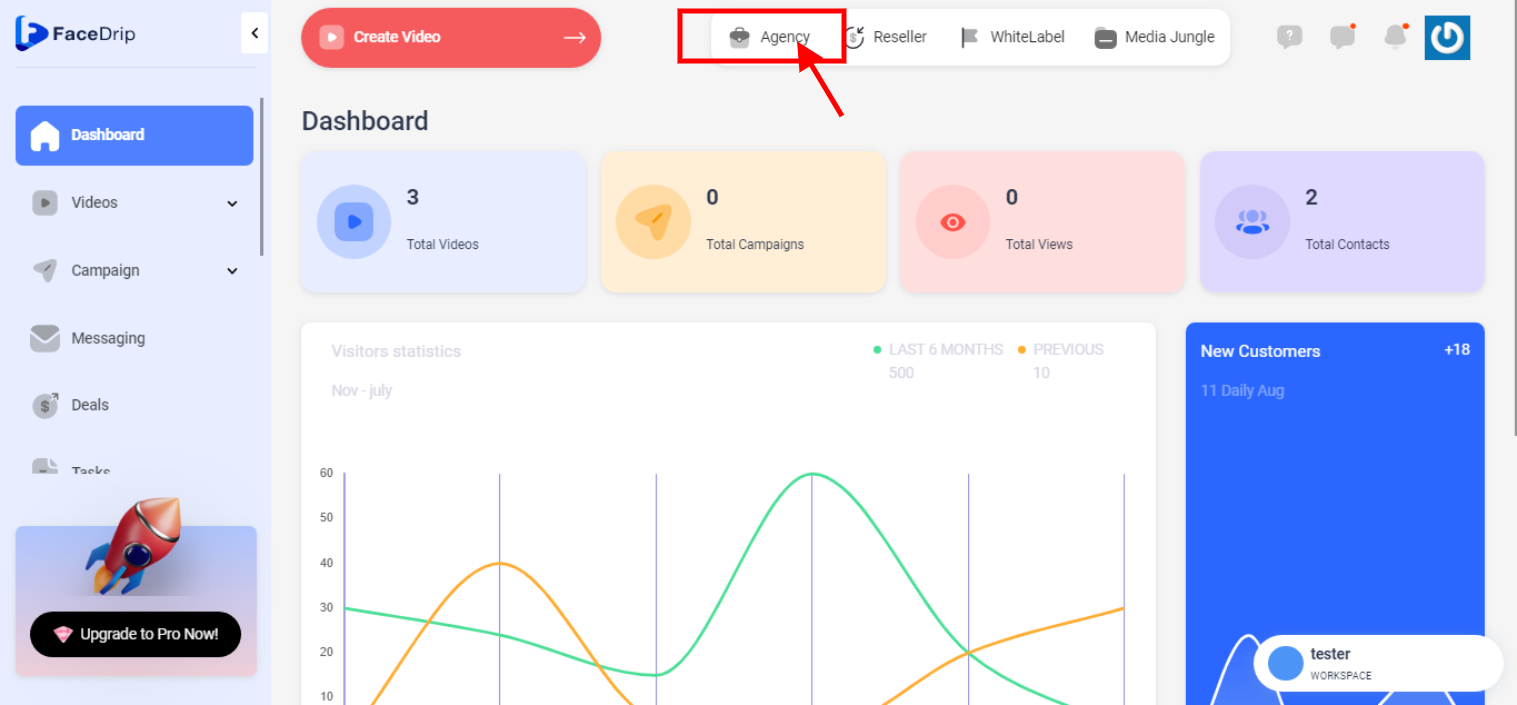
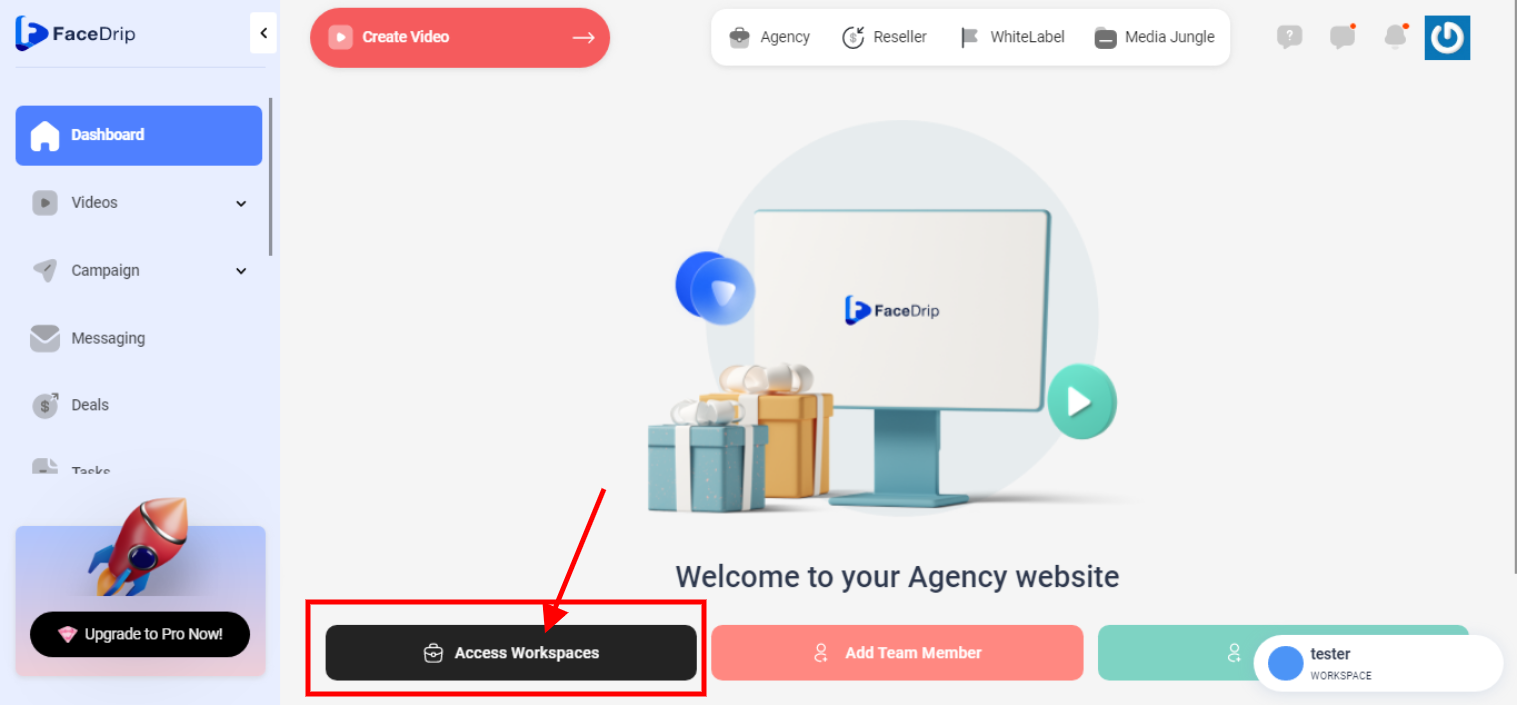
STEP 2: Click on “workspace” in the options below.
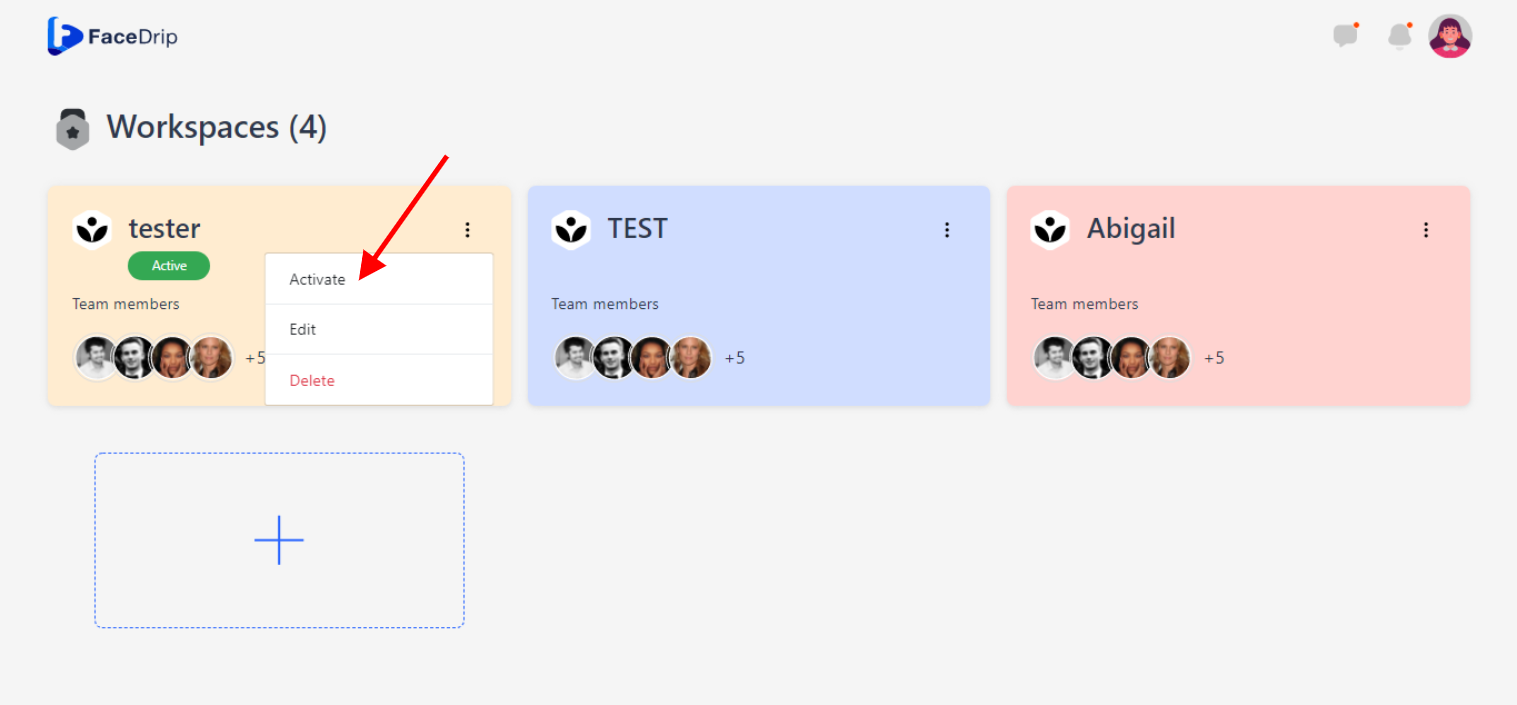
STEP 3: Choose the workspace you want to add video details and click the “activate workspace” button. (follow this link on How To Create New Workspace)
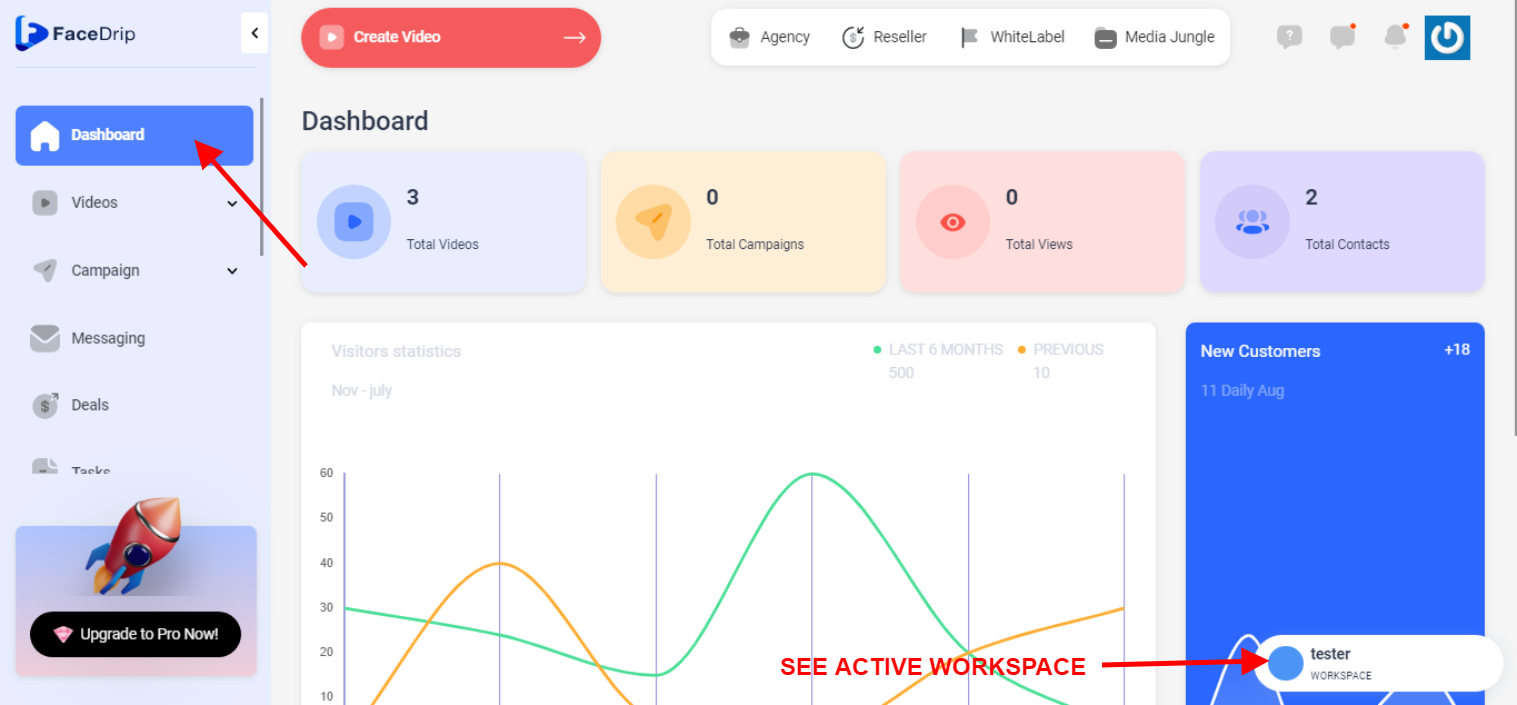
Your workspace will be activated successfully! (PS: Go back to your dashboard module to see the active workspace).
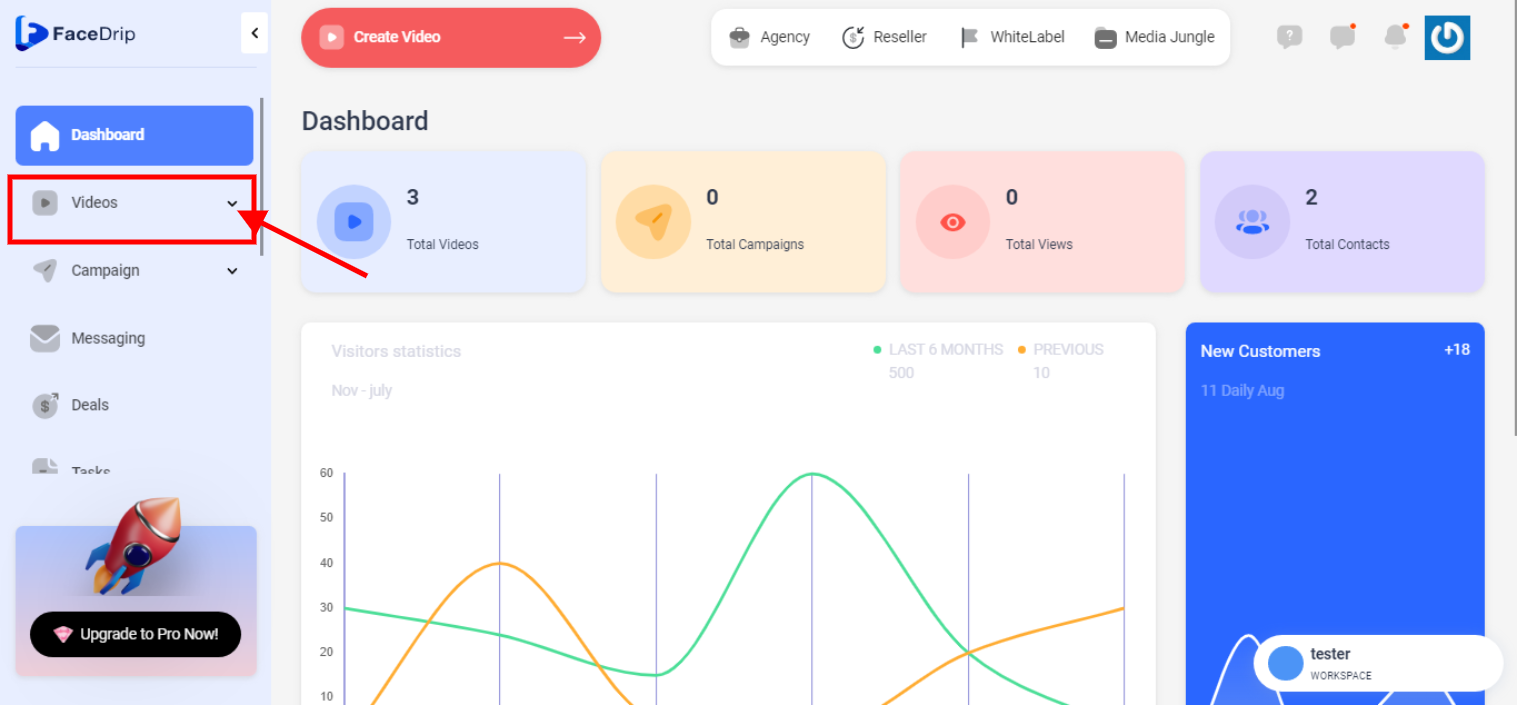
STEP 4: Click on the “video” menu on the left-hand side menu bar of your dashboard.
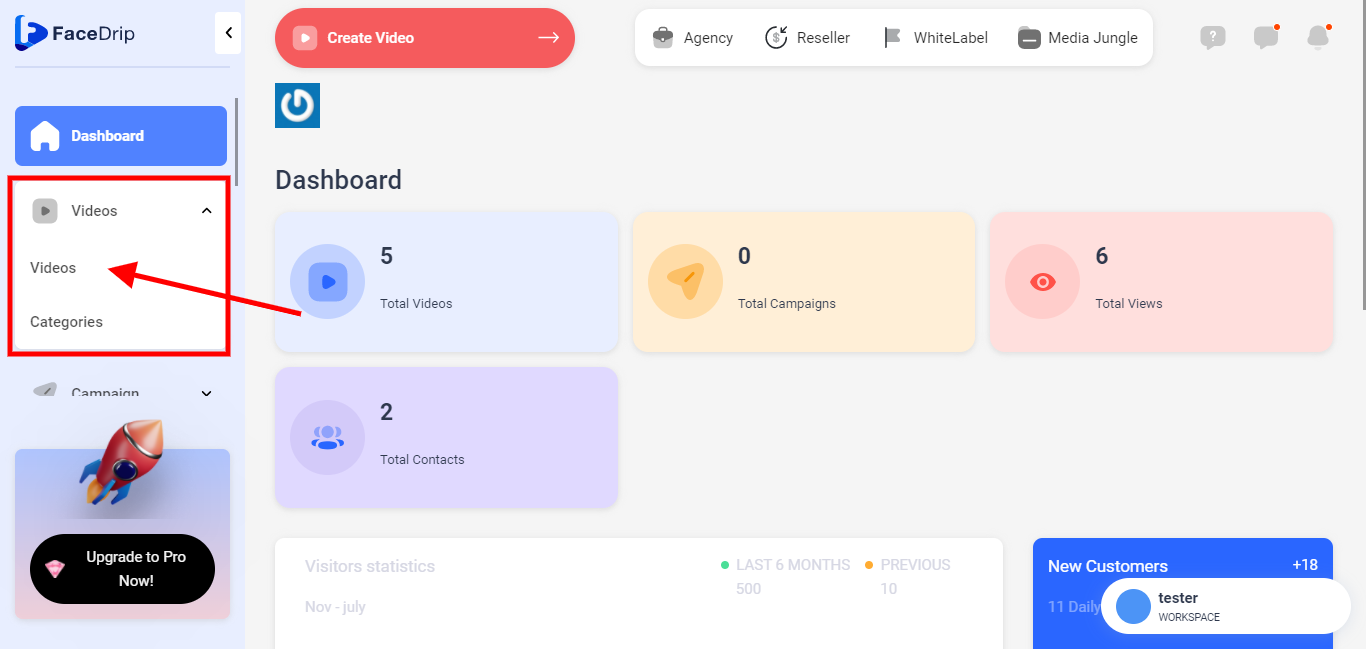
STEP 5: Click on “video” in the drop-down options.
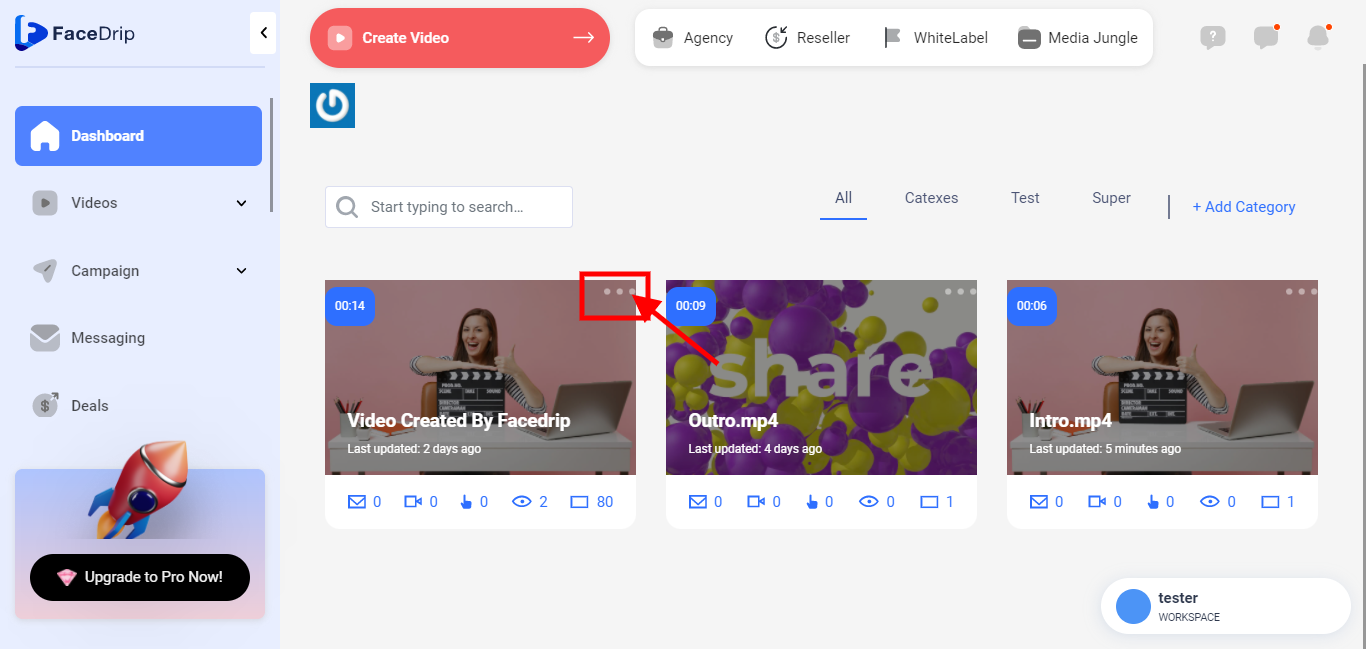
STEP 6: Click on the “triple-dot icon” on the video you want to view
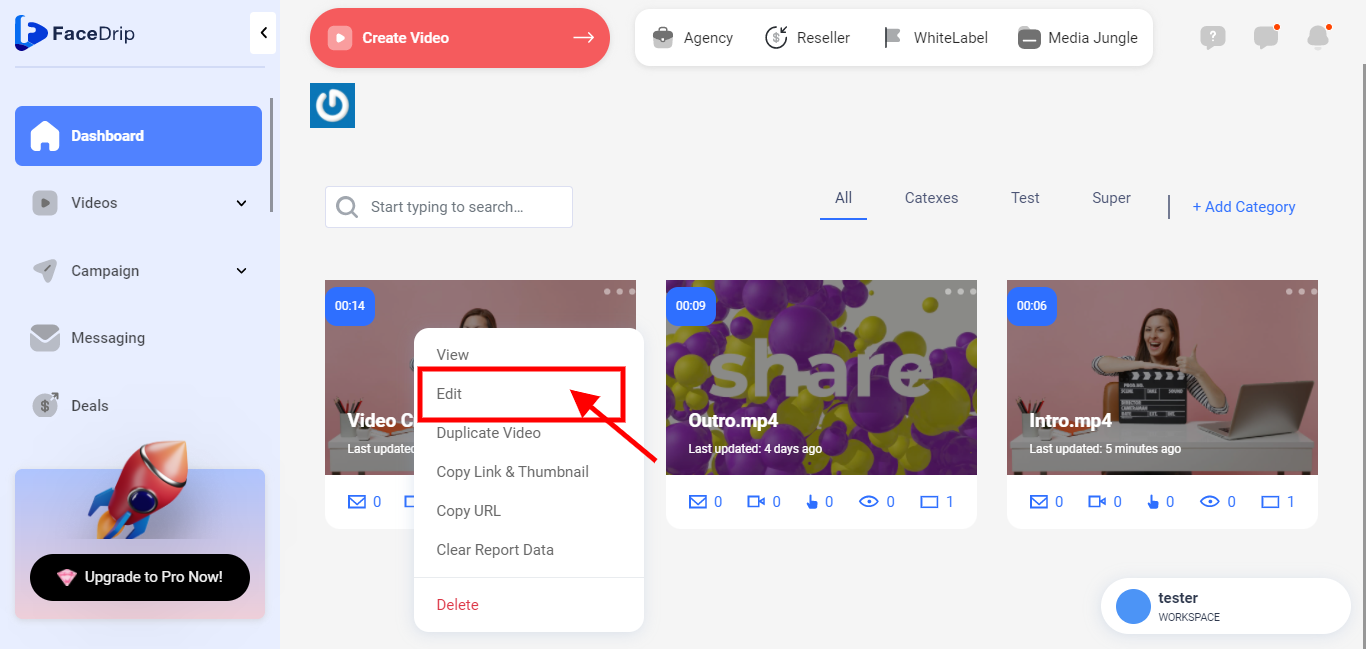
VIEW THE VIDEO BY CLICKING THE EDIT MENU OPTIONS
STEP 6: Click on the “edit” from the drop-down menu options
Then you can view video
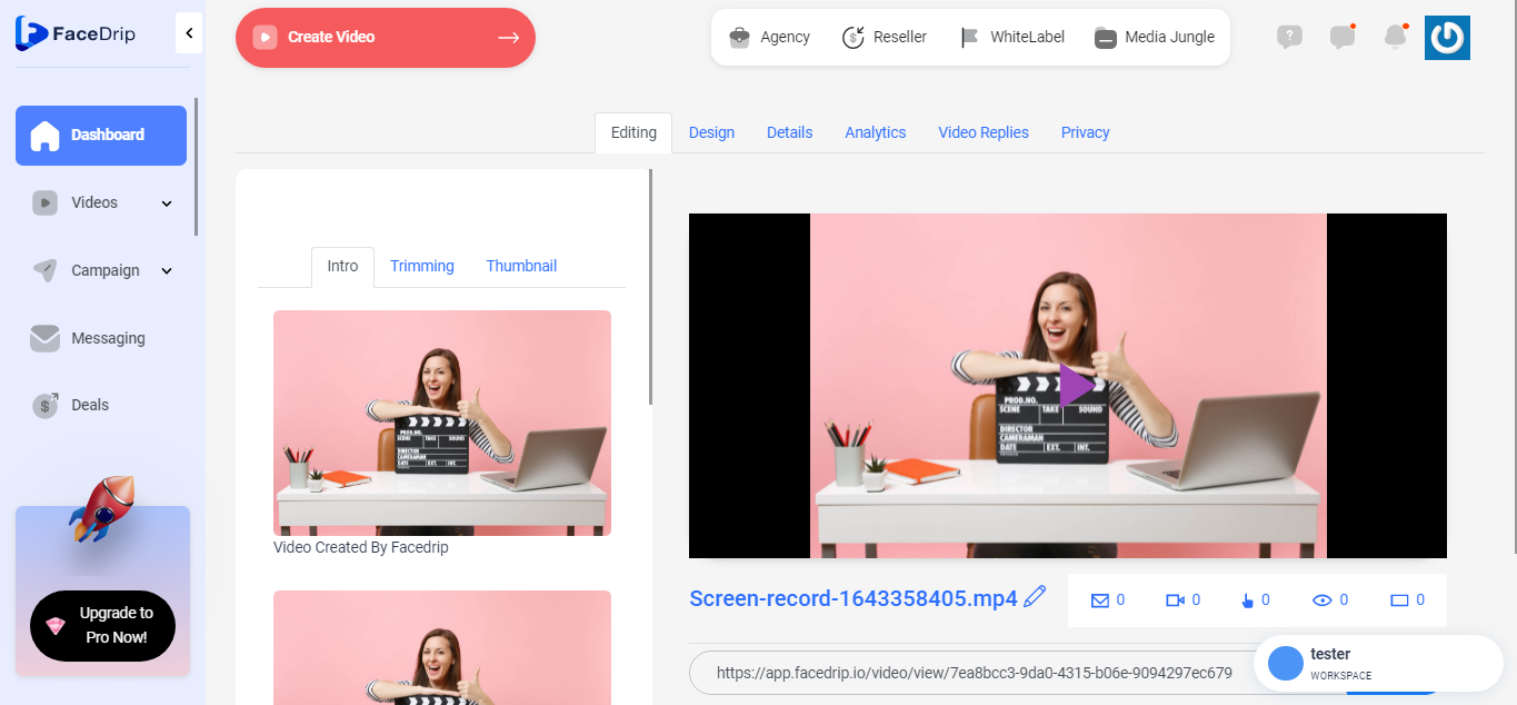
VIEW THE VIDEO BY COPYING THE VIDEO LINK
STEP 7: Click on the “triple-dot icon” on the video you want to add details
STEP 8: Click on the “Copy URL or Copy Link” from the drop-down menu options
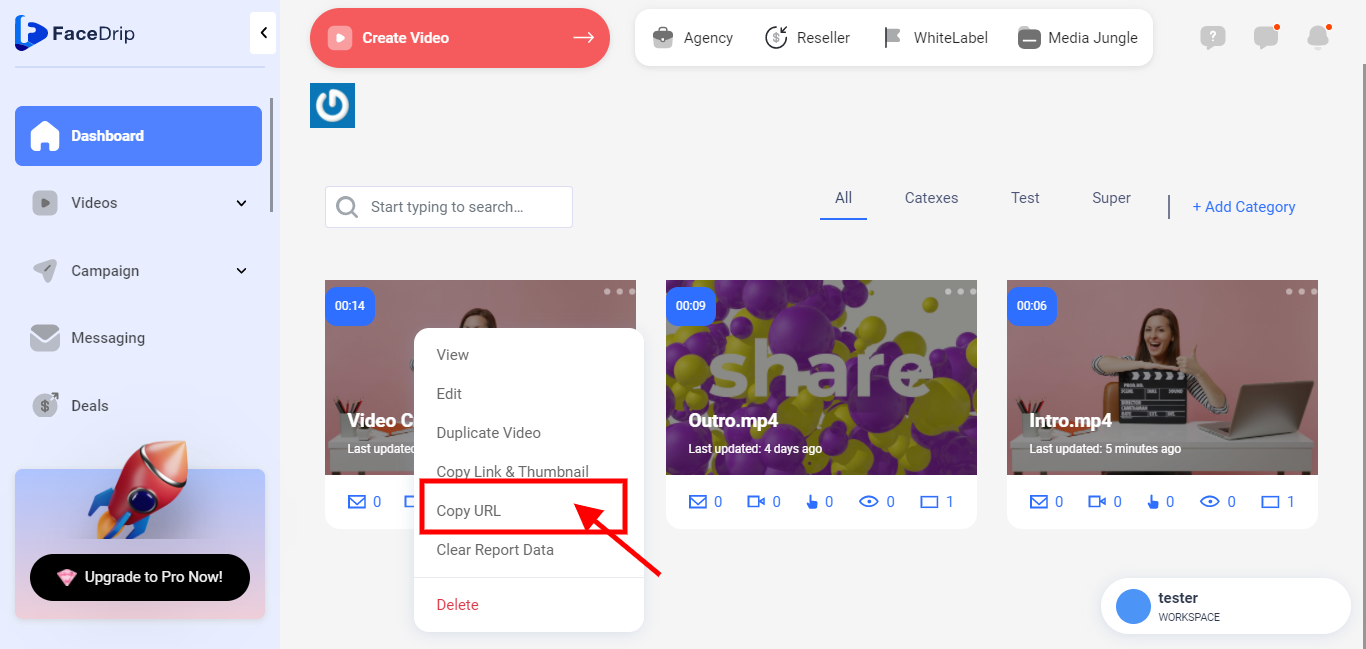
Step 9: Paste the URL on a browser tab or window

VIEW THE VIDEO BY CLICKING ON THE VIEW MENU OPTION
STEP 10: click on the “triple-dot icon” on the video you want to add details
STEP 11: click on the “View” from the drop-down menu options
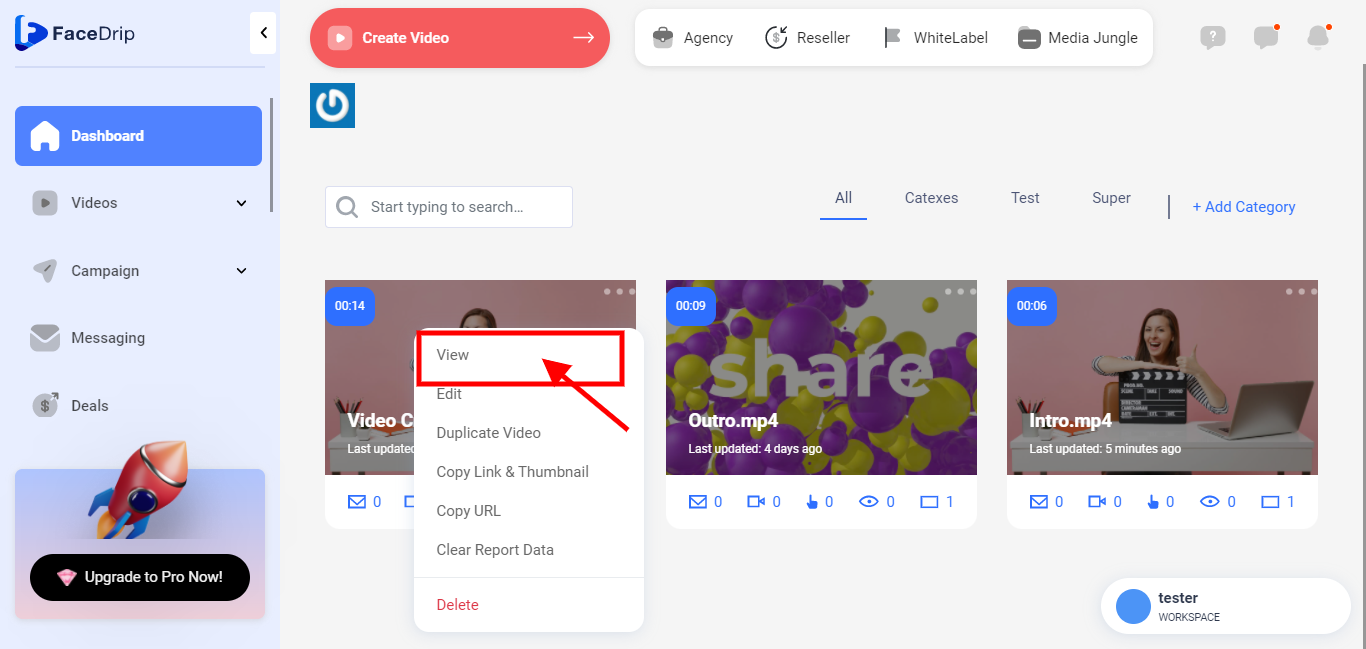
YOU CAN NOW VIEW VIDEO