Getting Started On How To Add Intro And Outro To Video
Log in to your Facedrip account.
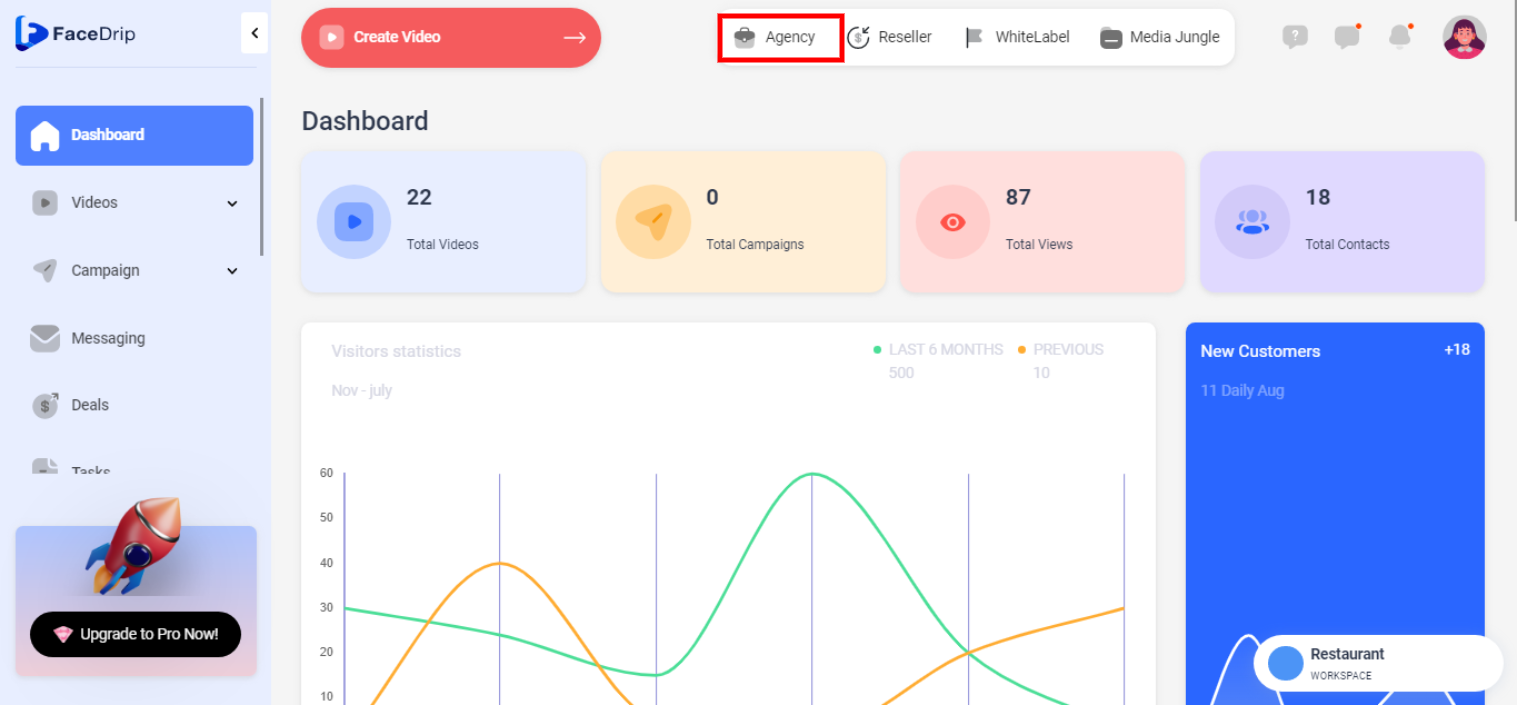
STEP 1: Click on the “Agency” on the top side menu bar of your dashboard
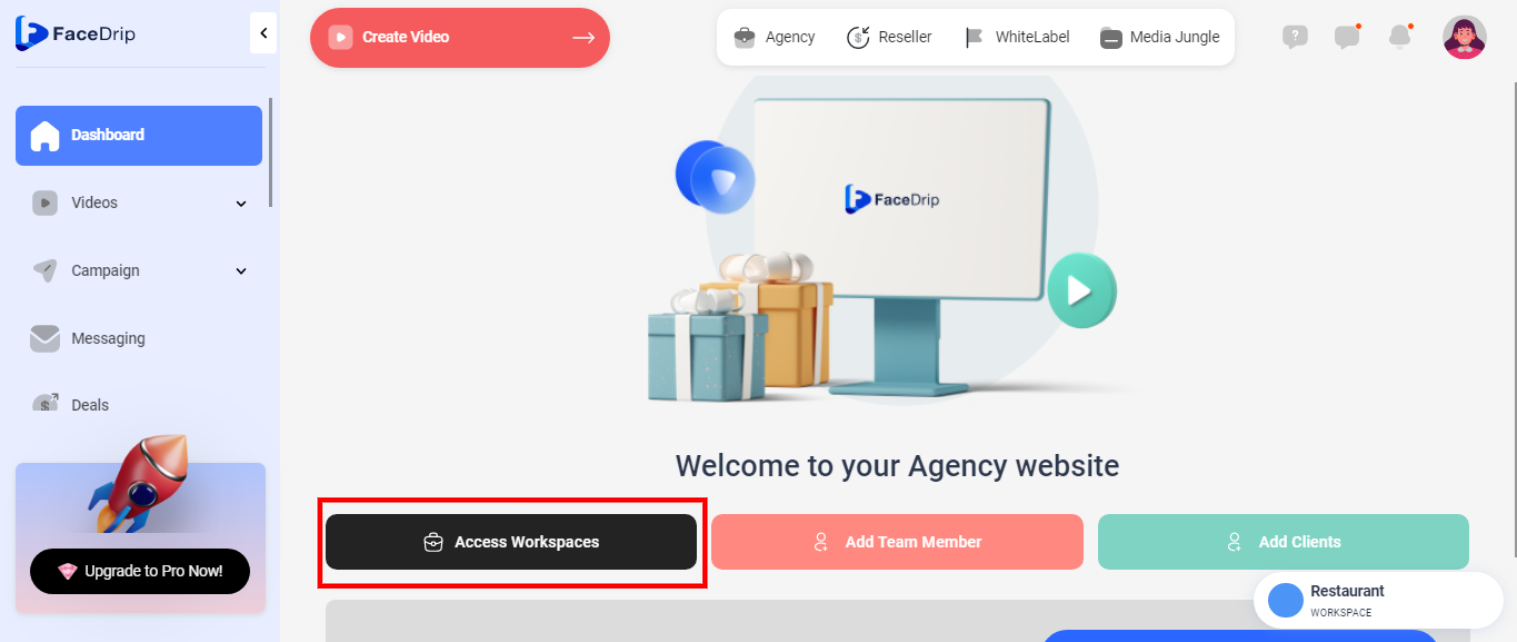
STEP 2: Click on “Workspace” in the options below.
STEP 3: Choose the workspace you want to ad intro & outro and click the “activate workspace” button. (follow this link on How To Create New Workspace)
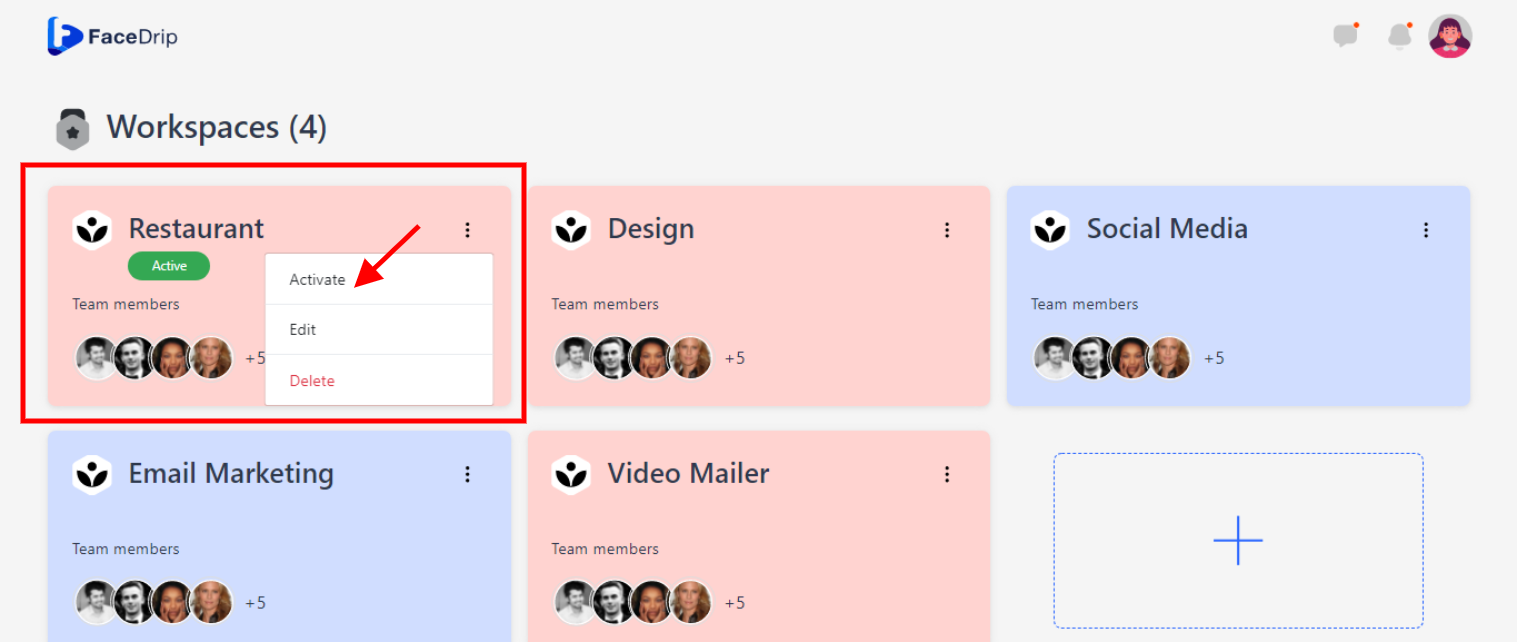
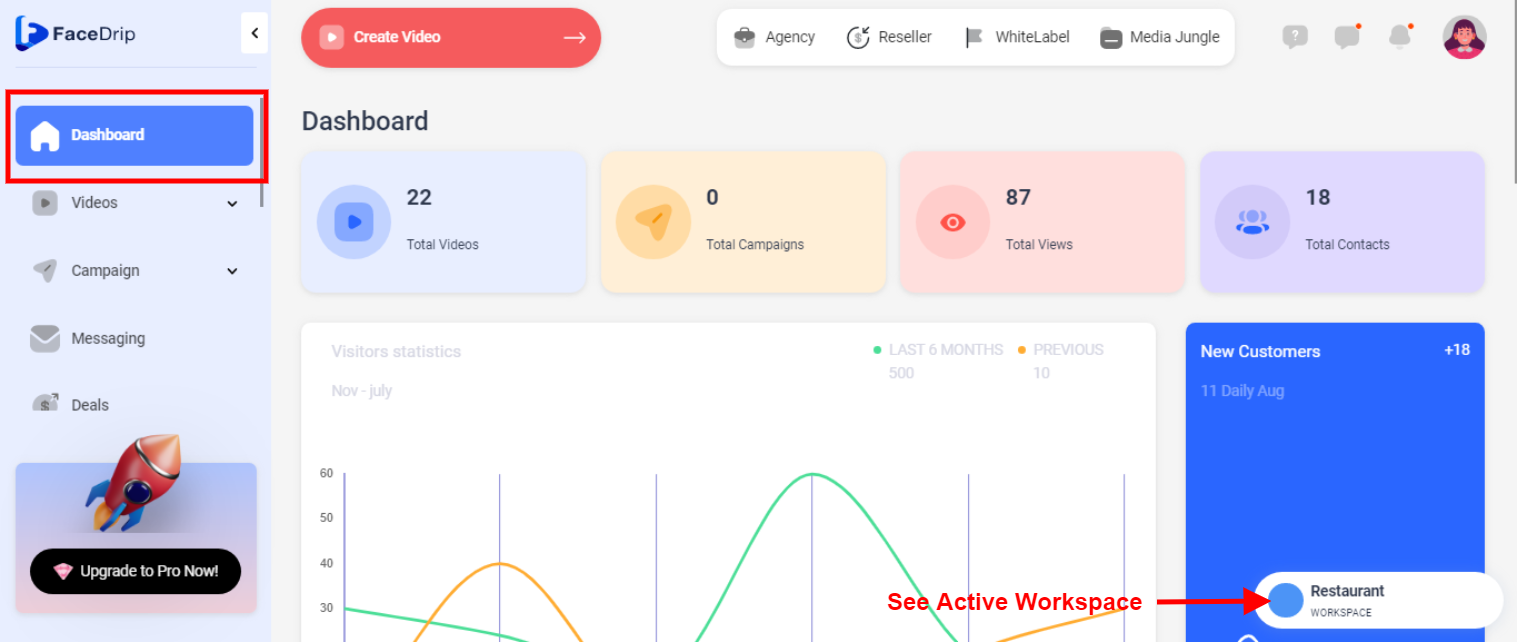
Your workspace will be activated successfully! (PS: Go back to your dashboard module to see the active workspace).
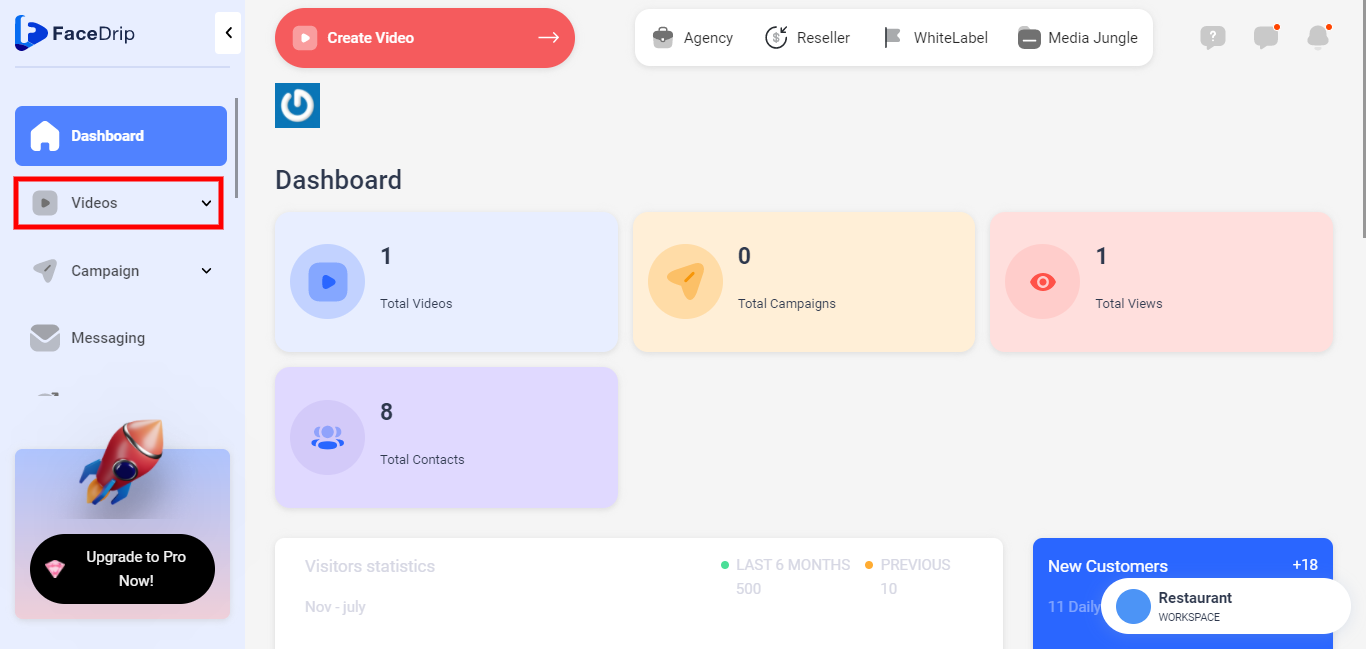
STEP 4: Click on the “video” menu on the left-hand side menu bar of your dashboard.
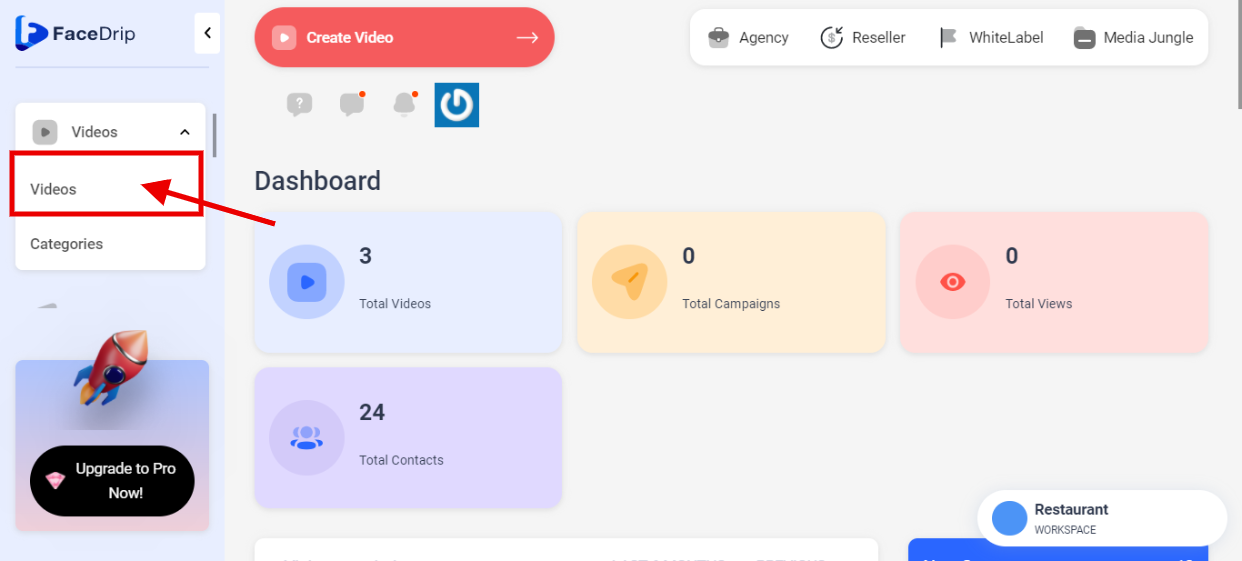
STEP 5: Click on the “video” from the dropdown menu on the left-hand side menu bar of your dashboard.
STEP 6: Select a “video” from the list of videos you wish to view its reply.
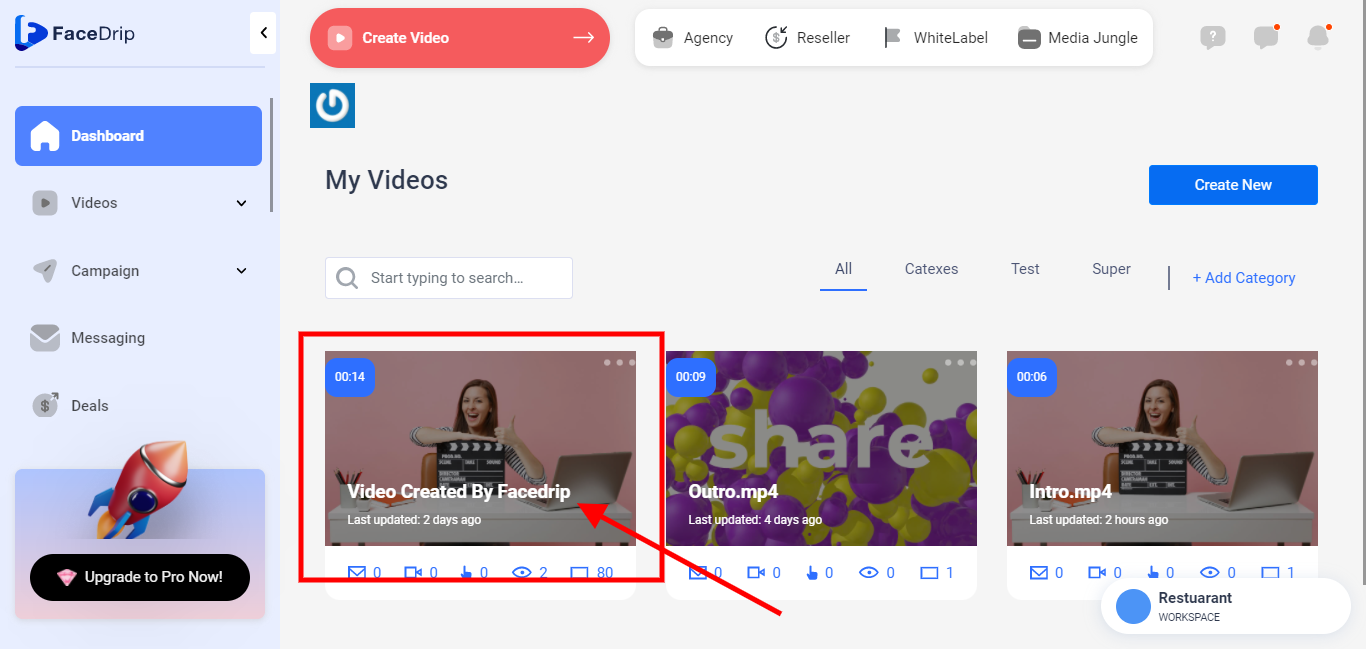
STEP 7: Left–Click on the “Triple Dot” icon on the video selected.
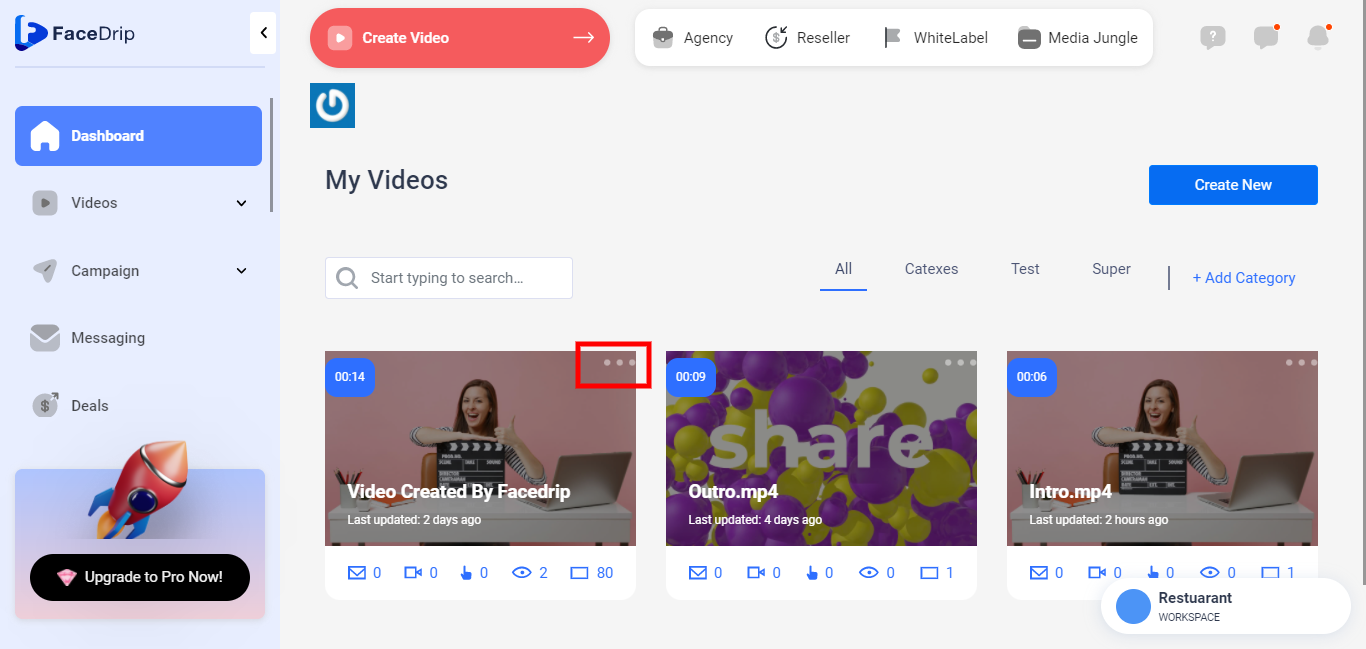
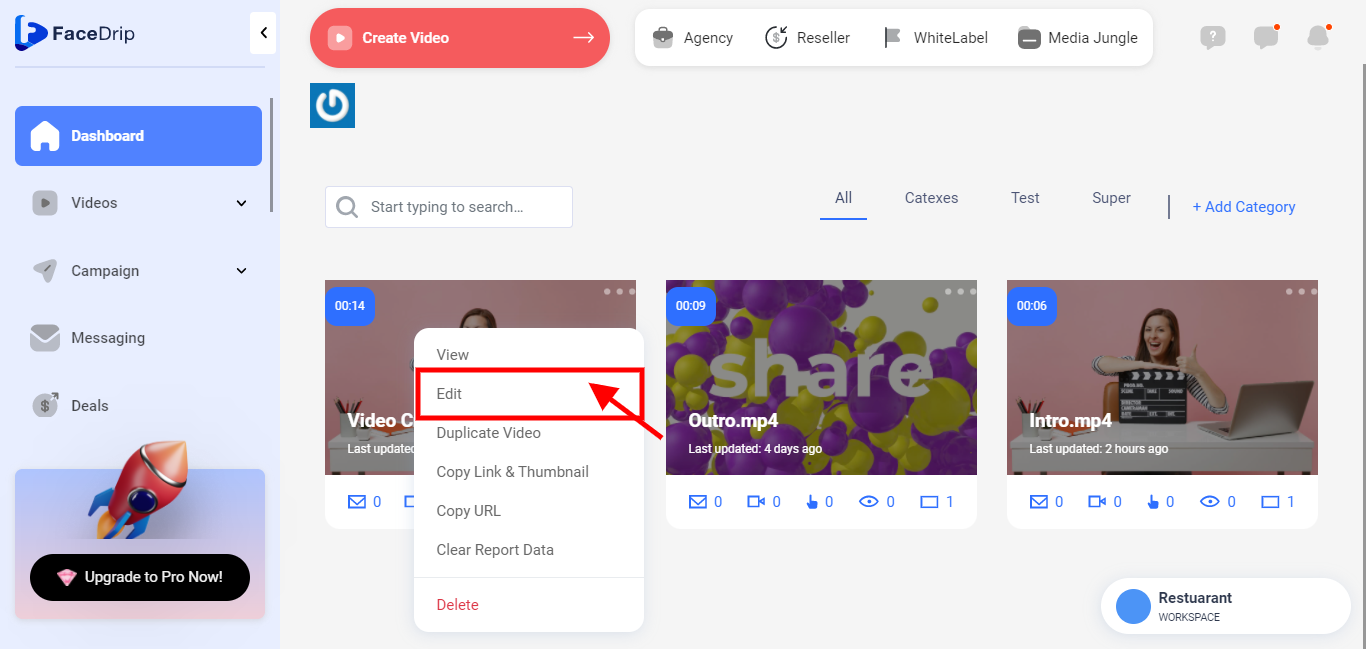
STEP 8: You will see the pop-up list. Click on “Edit” on the pop-up list.
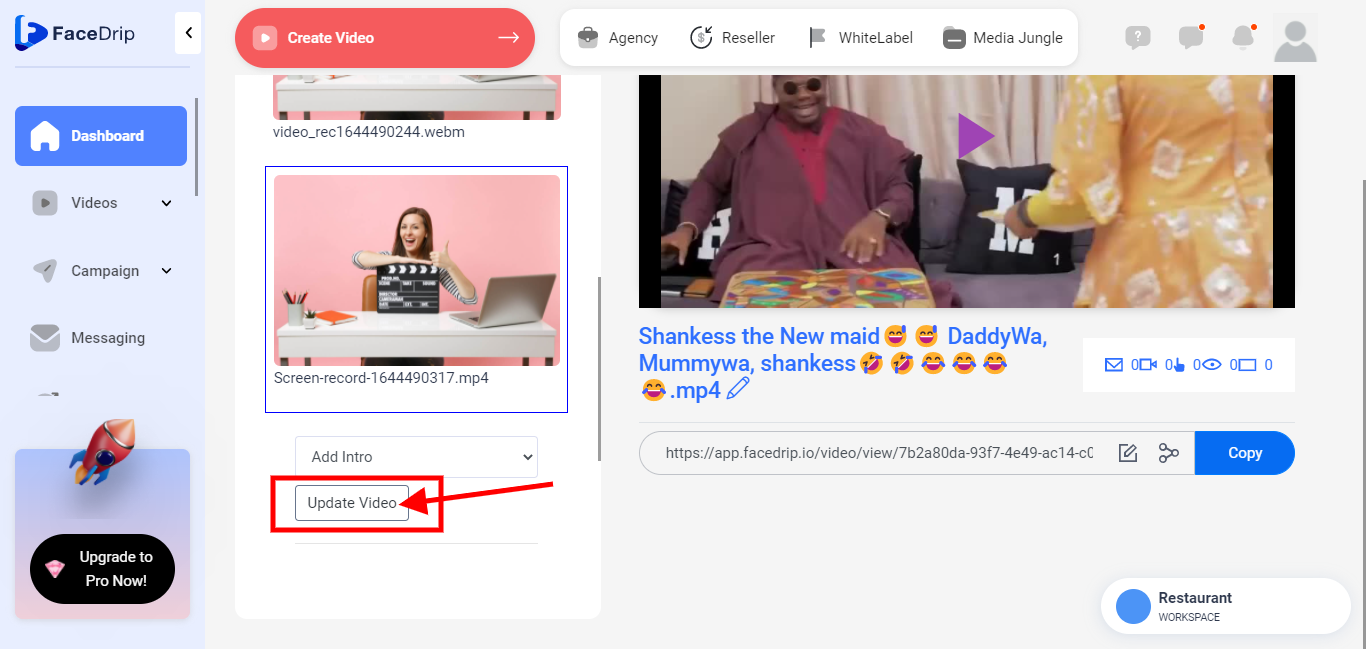
STEP 9: Select a “Video” you want to use as your intro/ outro from the list of video’s 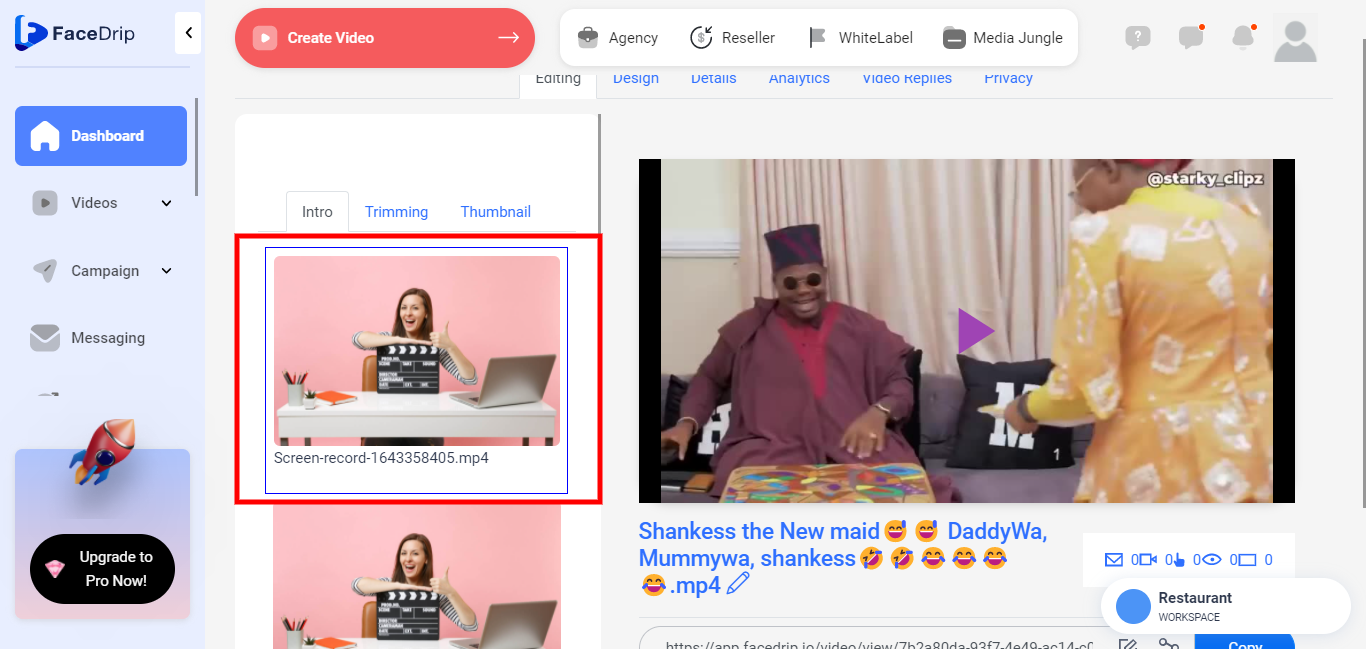
STEP 10: Select “Add Intro” from the option below
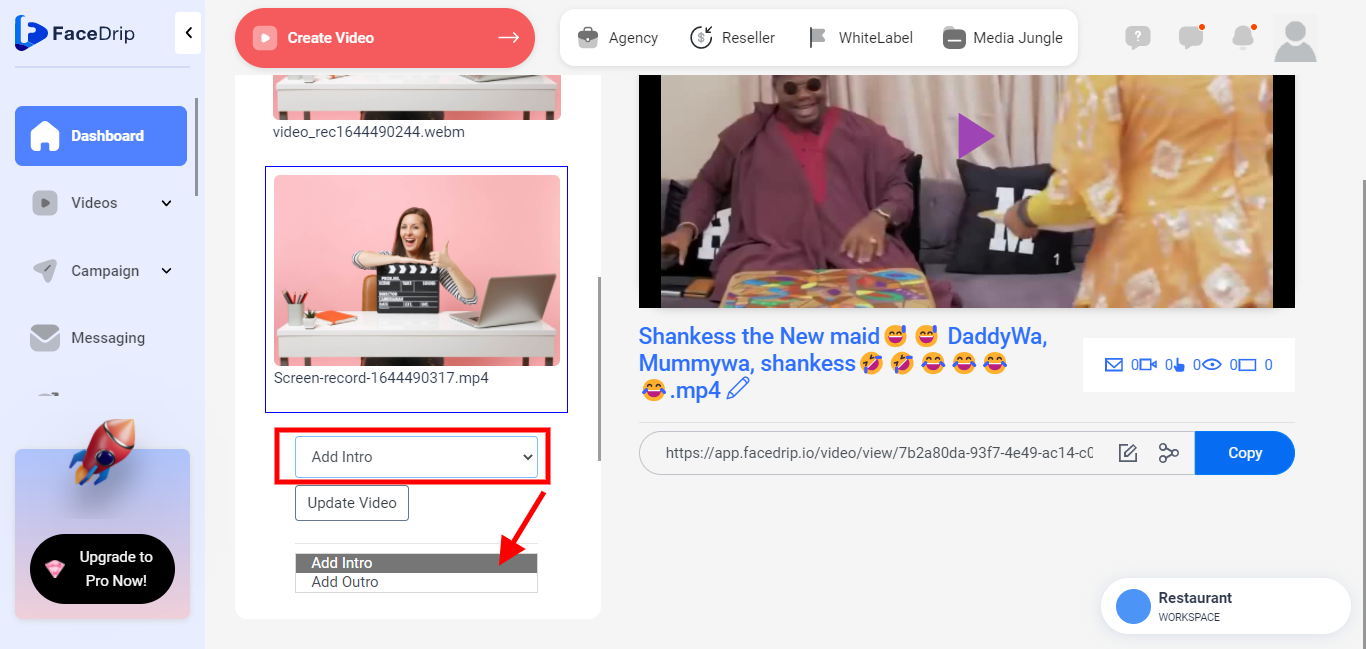
STEP 11: Click on “Update Video” to save the intro video
you will get a success message “Video updated”
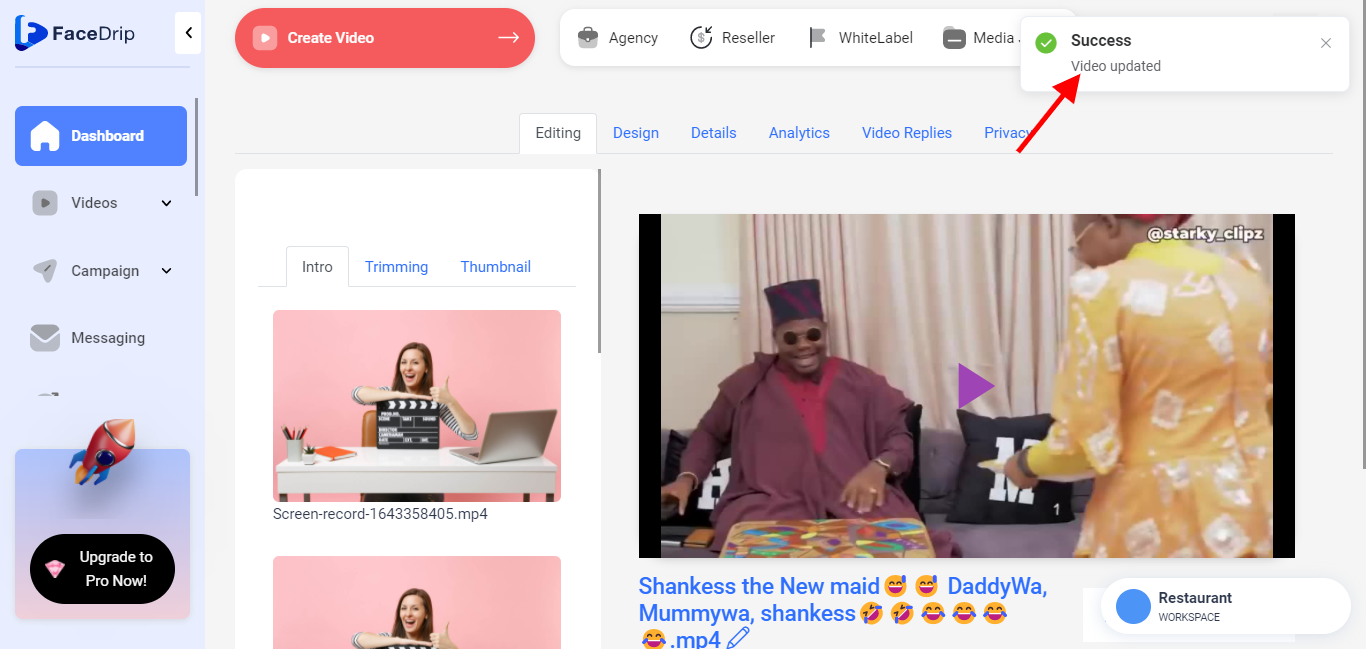
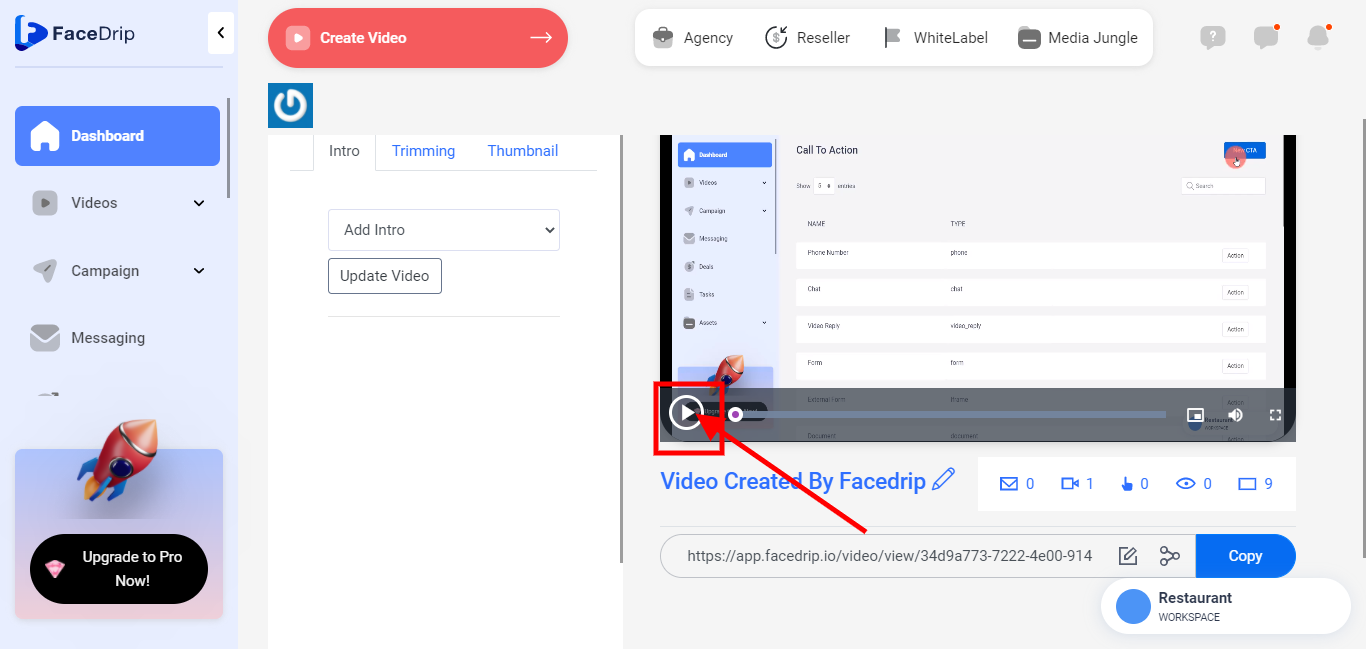
STEP 12: You will be redirected to the video editing page Click on the “Play” icon to play the video and you will see the intro added to the video.