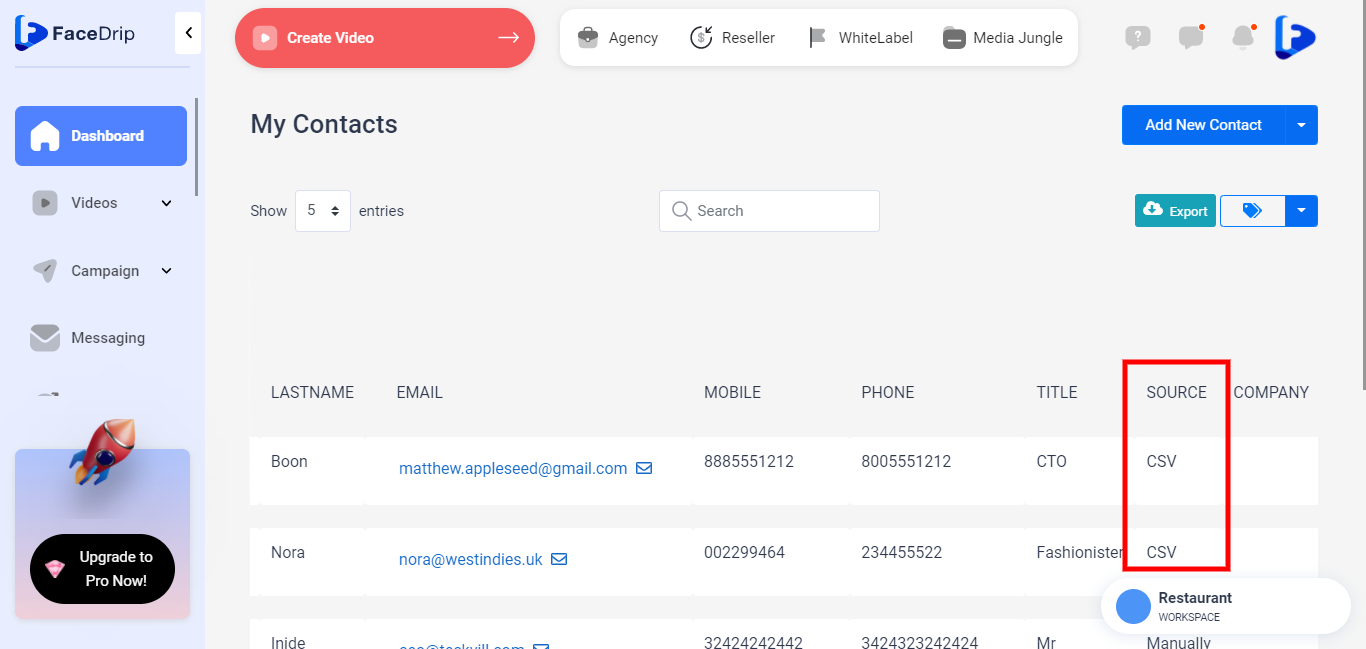
Facedrip allows you to import contacts with a CSV file. Here are a few simple steps to follow:
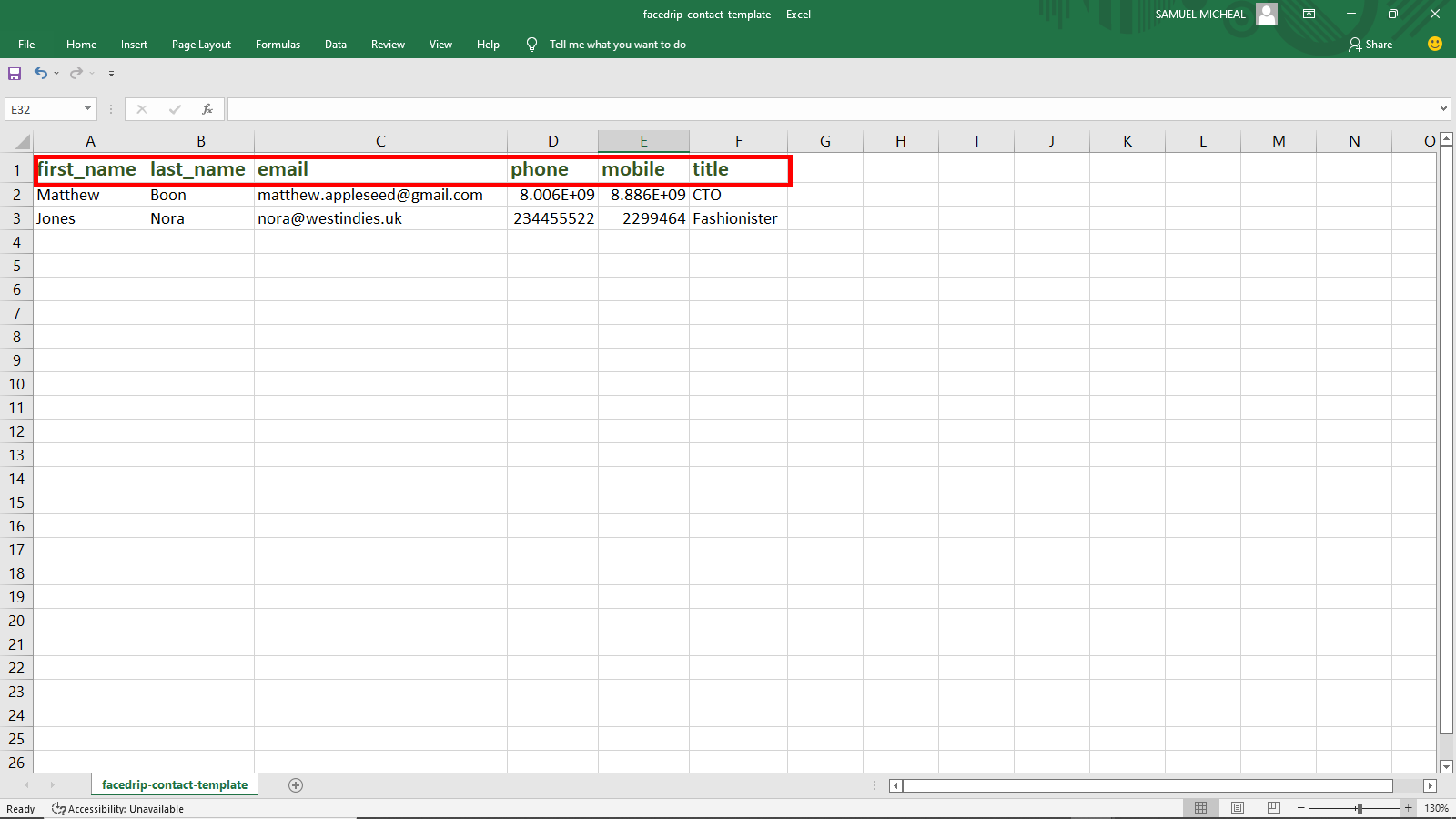
Step 1: Download a sample here make sure the First Name, Last Name, and Email columns are exact. The screenshot below shows a sample template
Step 2: Go to connection and click on the contact menu option

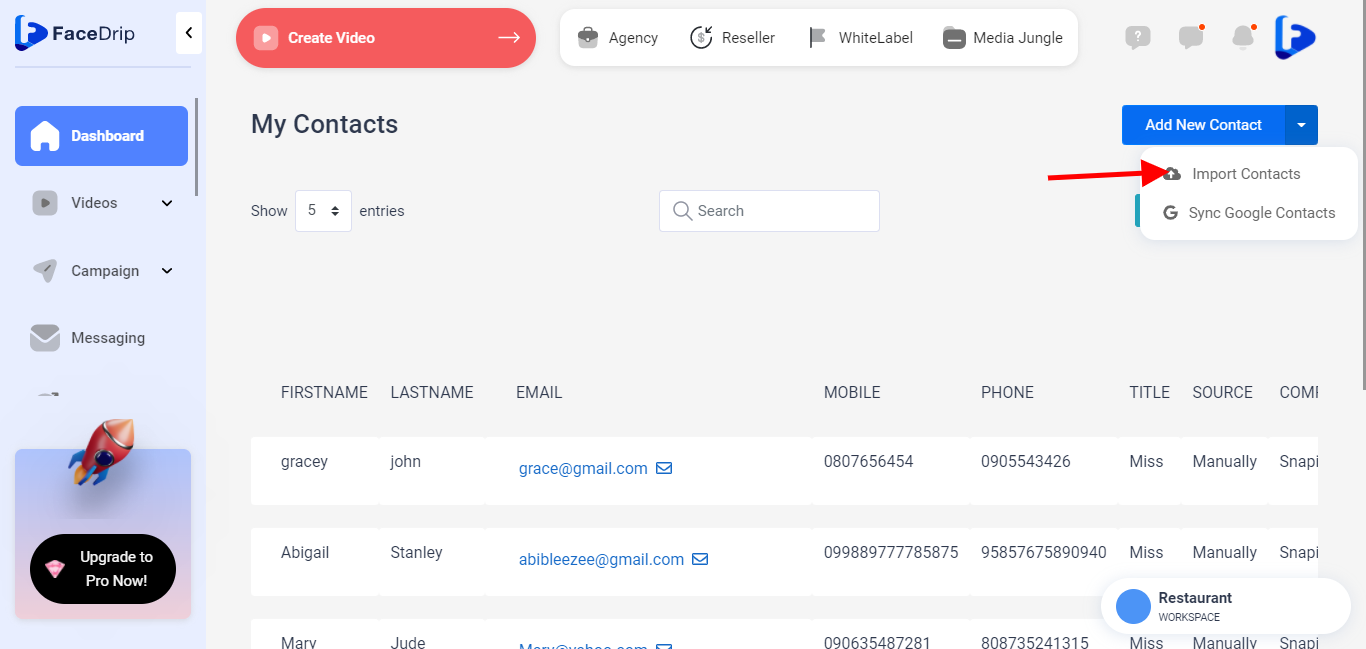
Step 3: Click on the blue add new button at the top right and select the import contact option
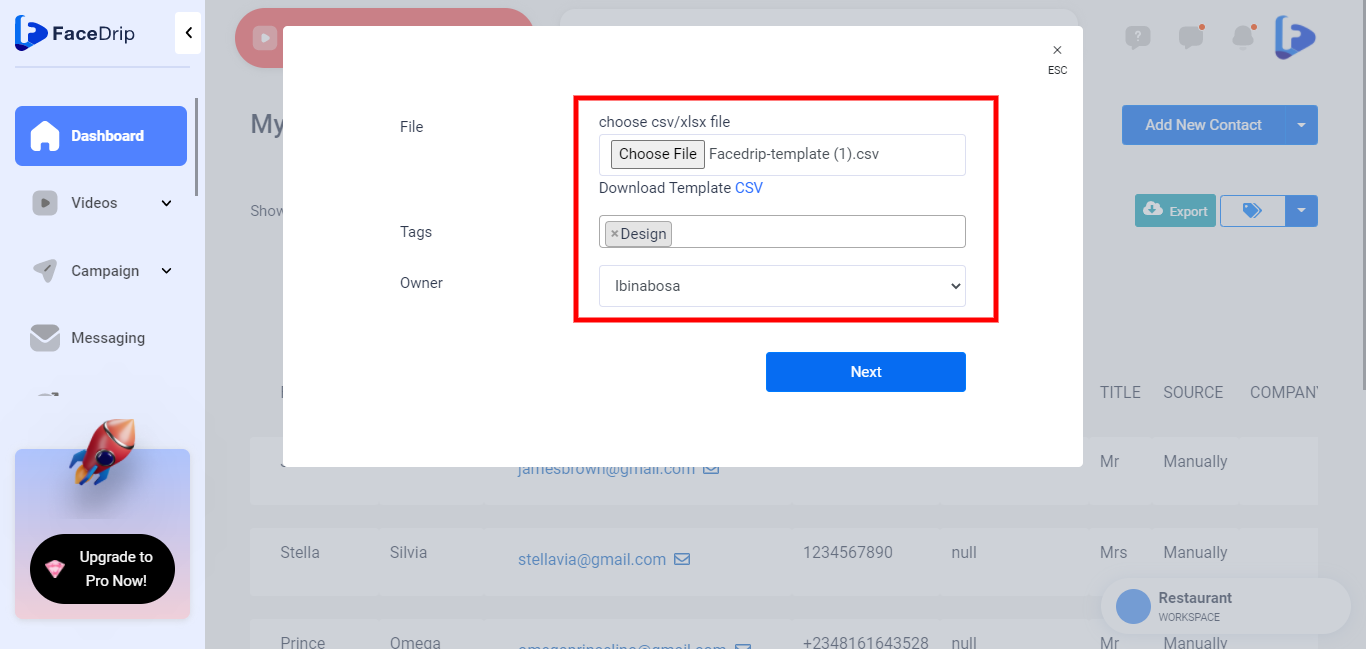
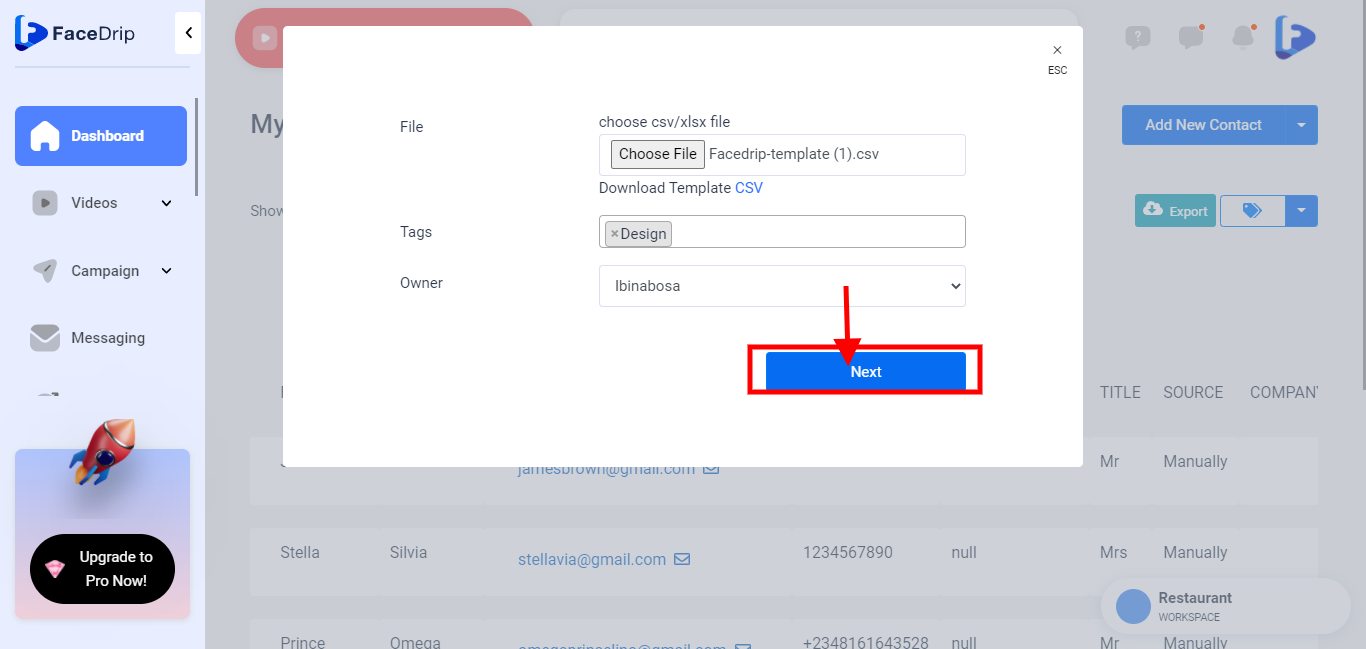
Step 4: Choose file, select tag(s) and owner in the respected field on pop up modal
Step 5: Click on the Next button. Then you will see a preview modal of the contact to be imported.
Step 6: Click on the import data button
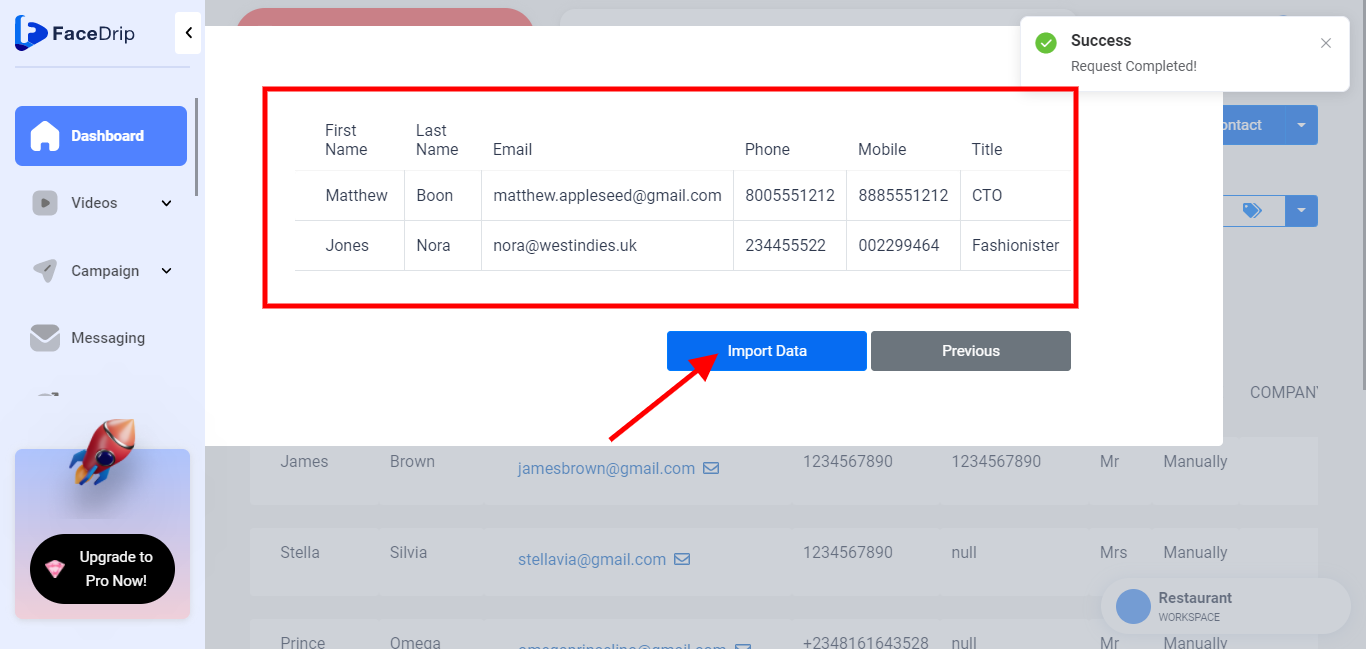
Step 7: Contact imported successfully