Log in to your Facedrip account.
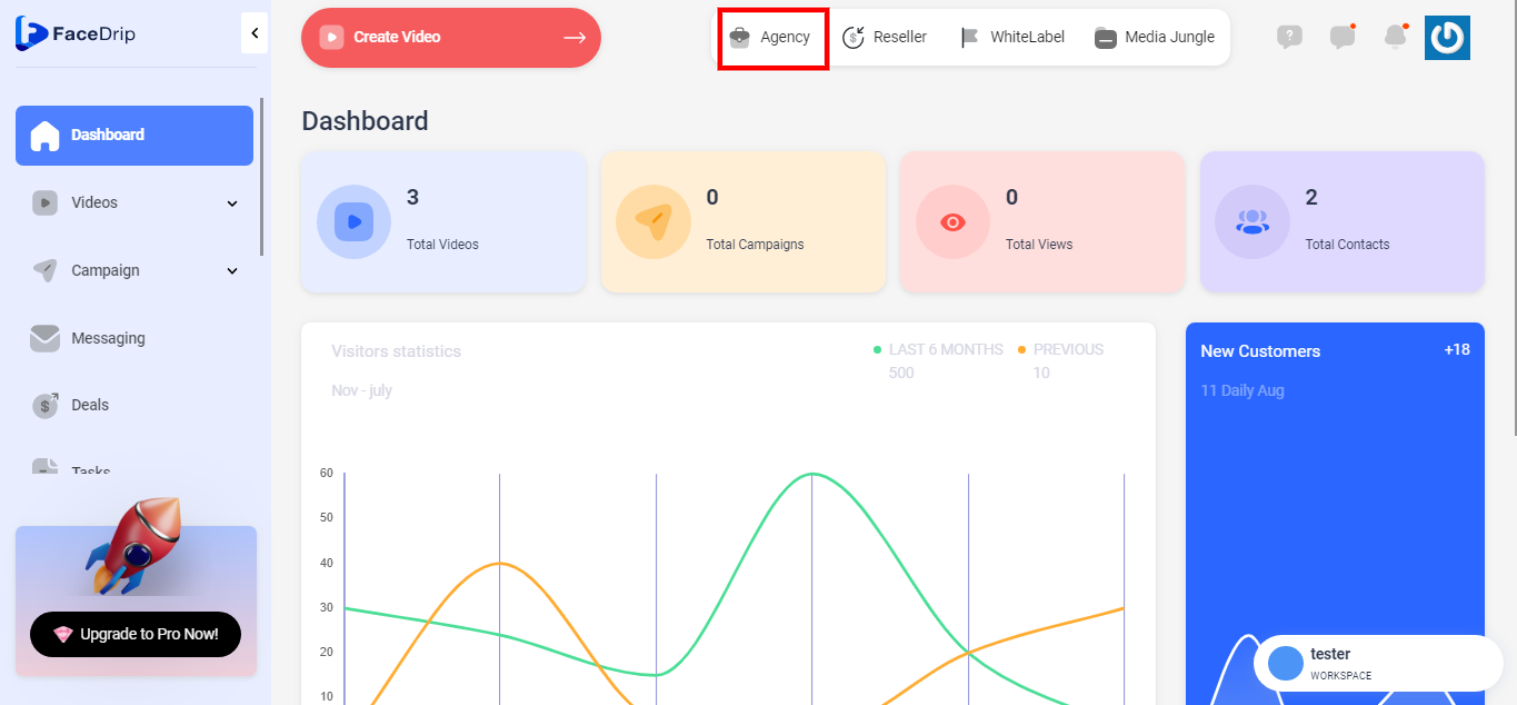
Step 1: Click on the ‘Agency’ button .
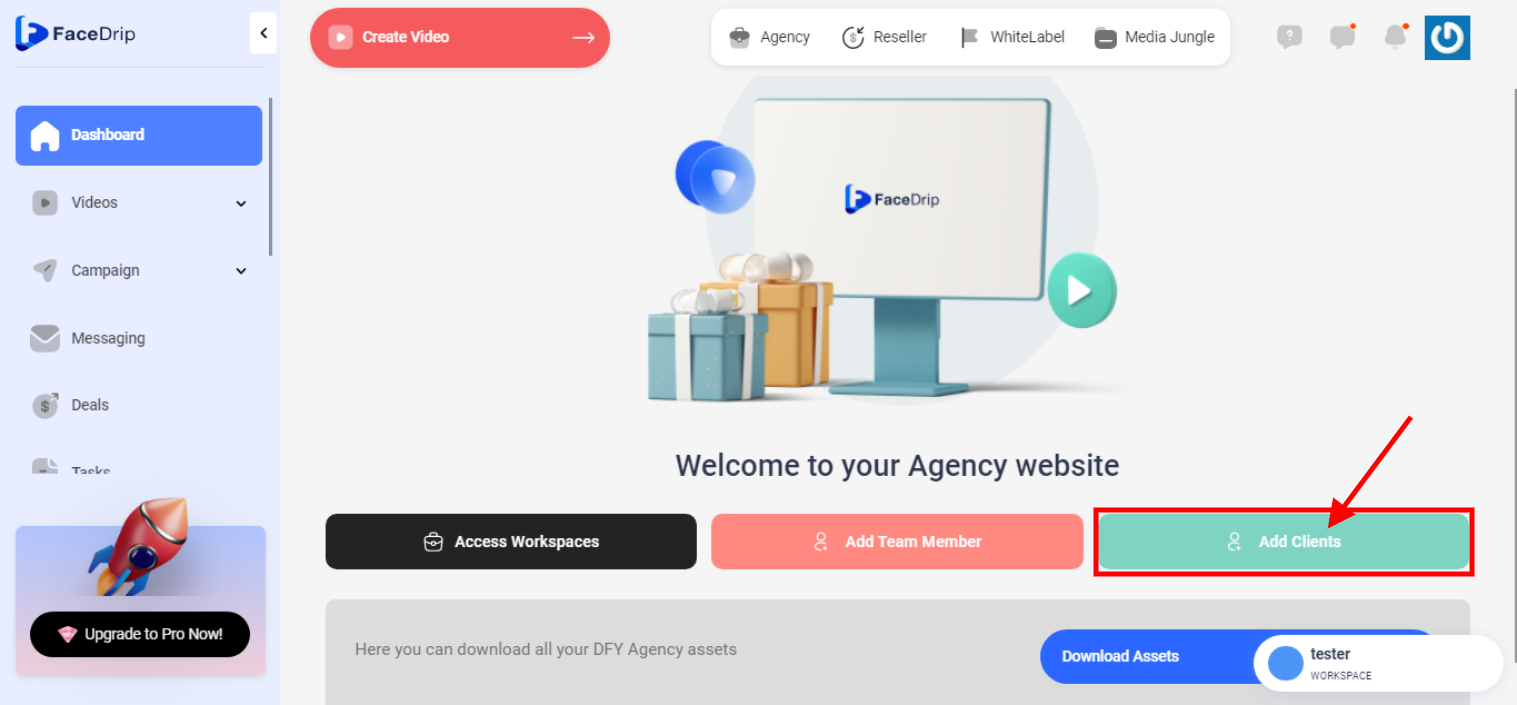
Step 2: Select ‘Clients’
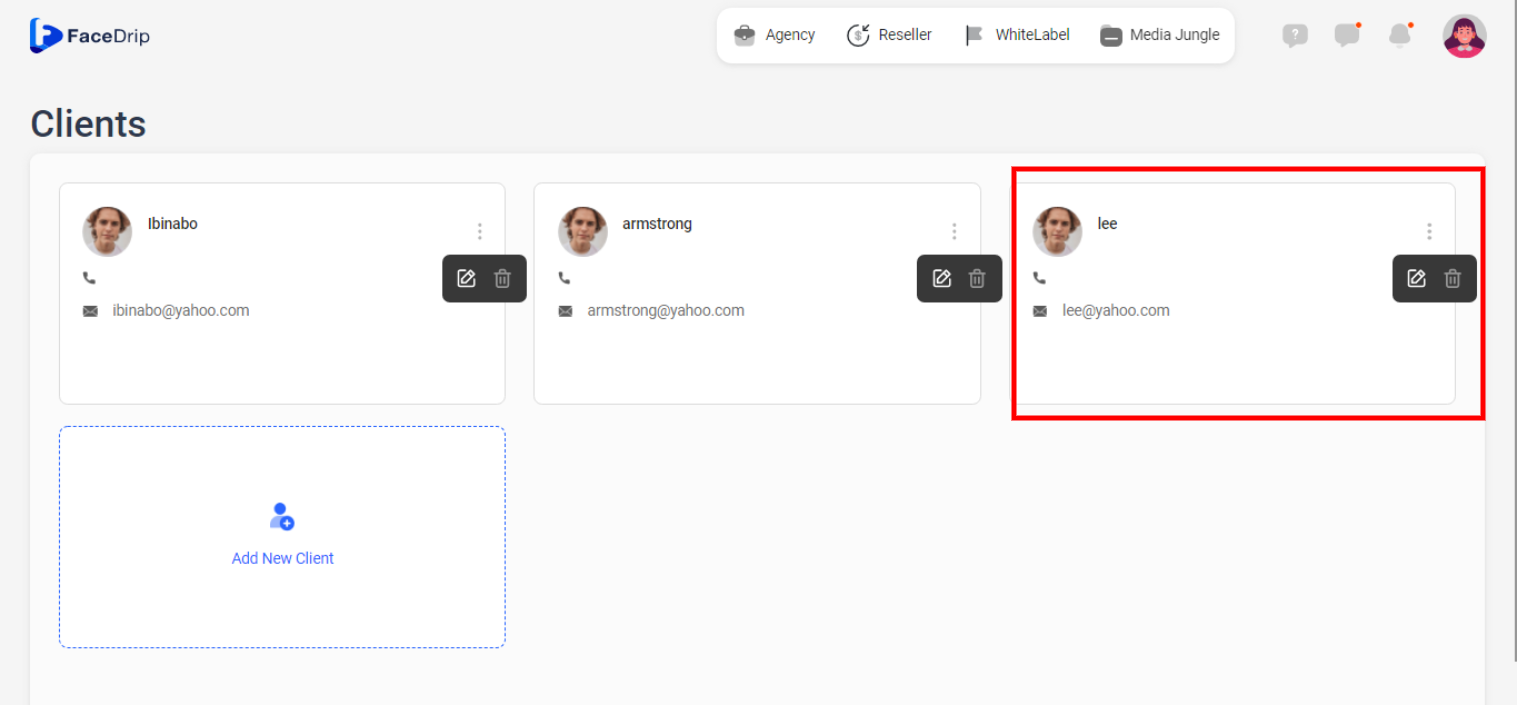
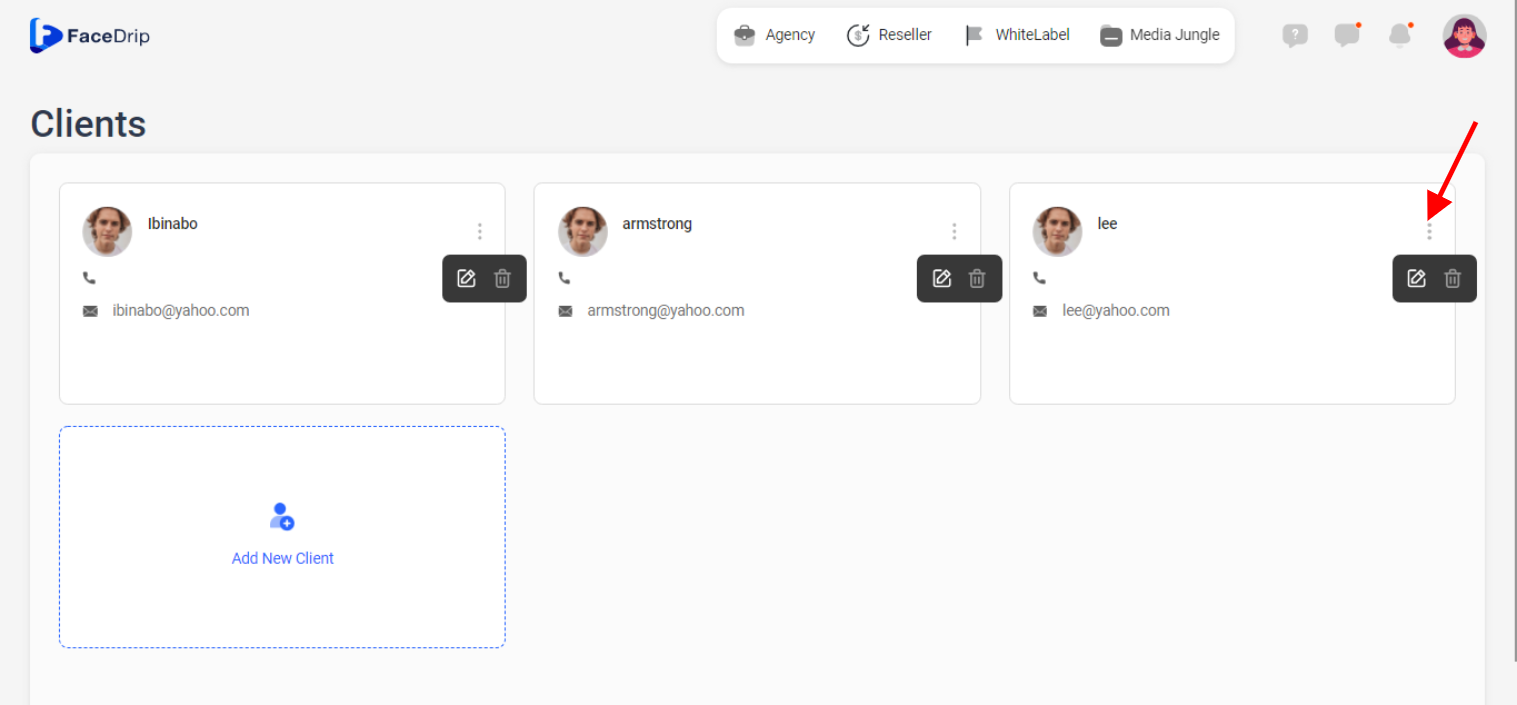
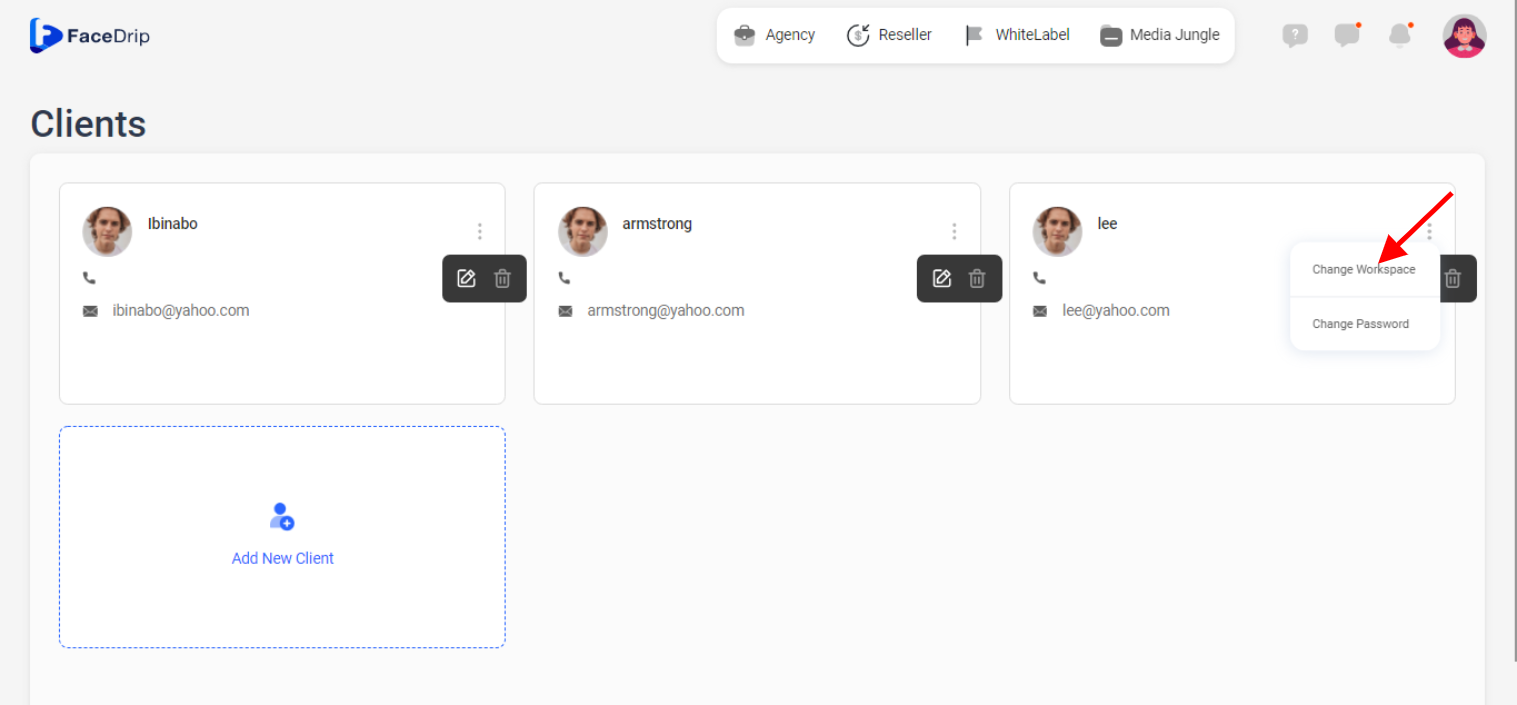
Step 3: On the Client dashboard, click on the ‘triple-dot icon’ by the top right corner of the particular client card you want to update.
Step 4: On the select menu, click on the ‘Change workspace’ drop-down item.
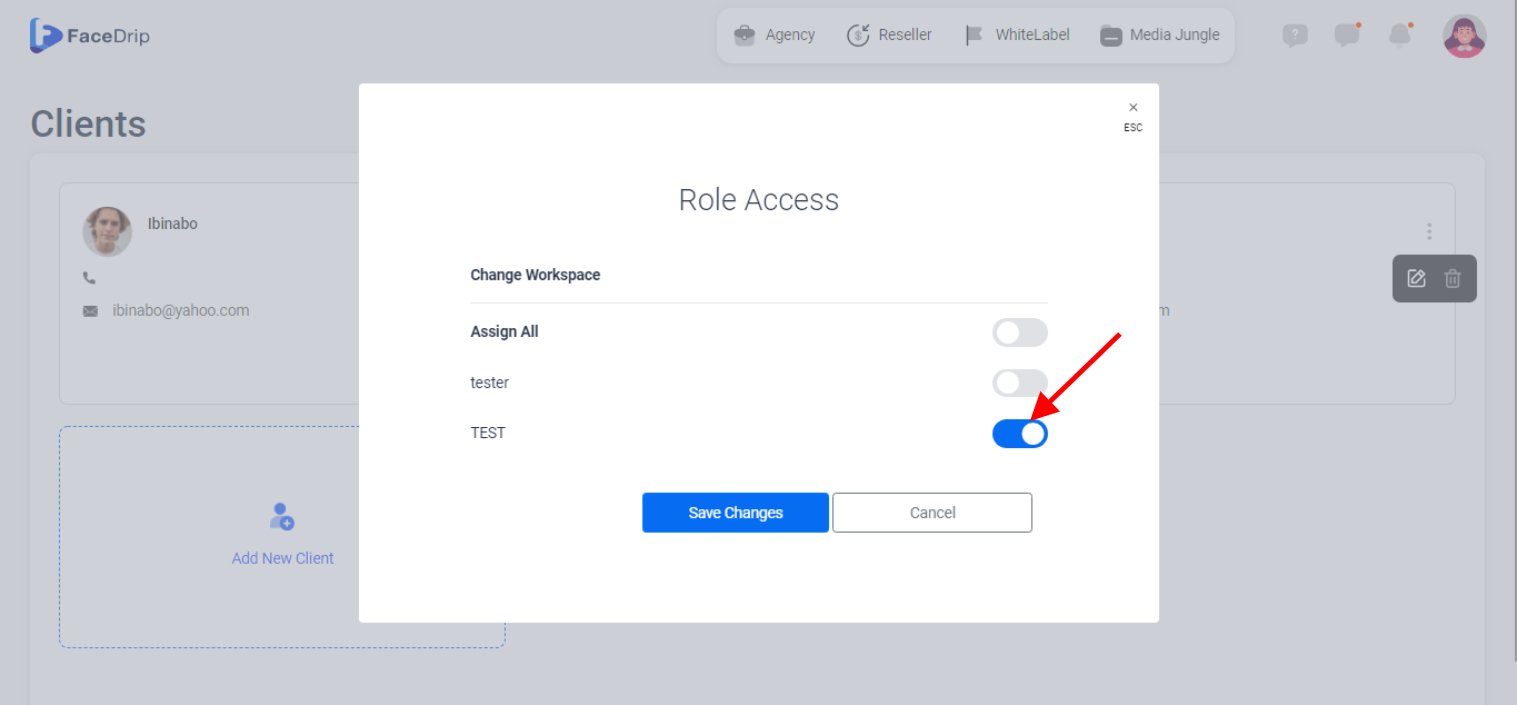
Step 5: On the pop-up Role Access form, Click the toggle button To Update Client’s Access in Workspace
Step 6: Then click the ‘Save Changes’
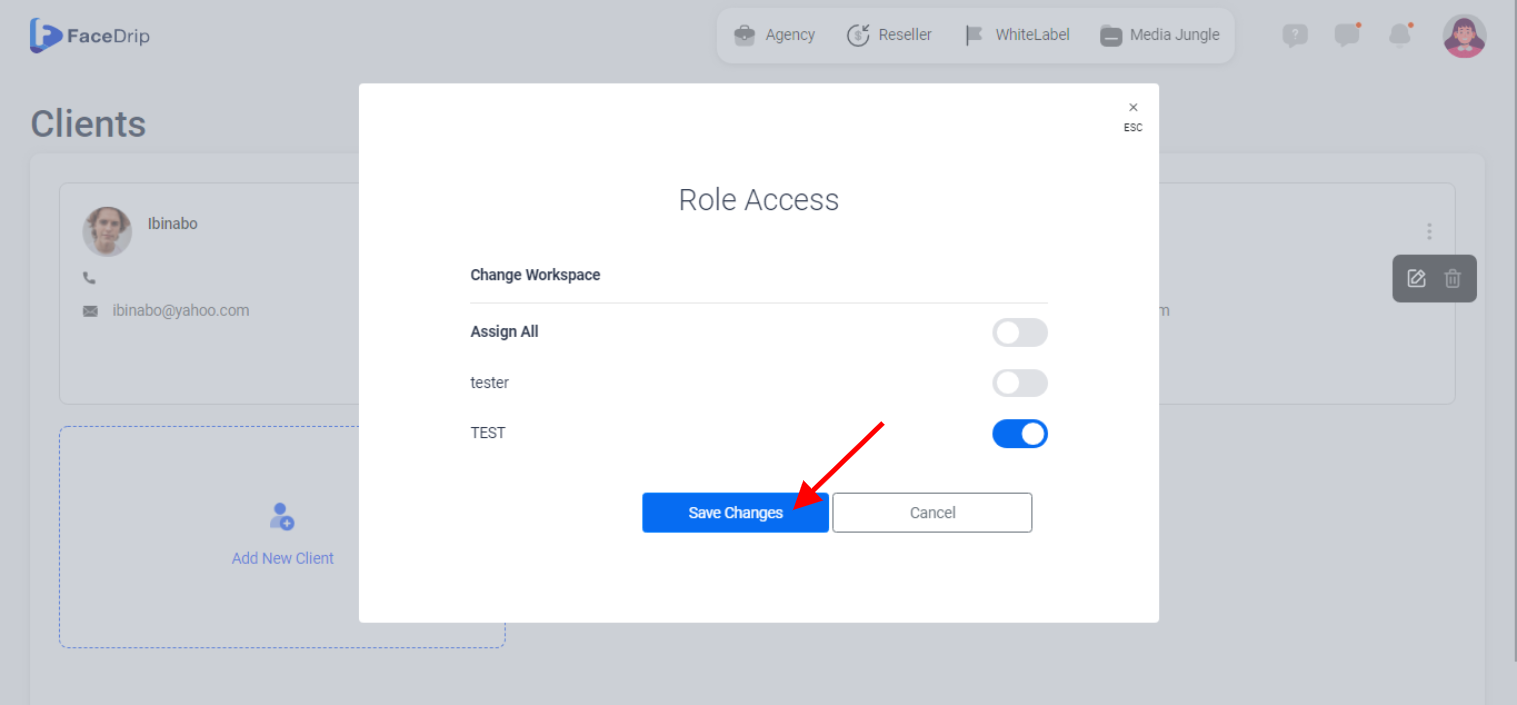
Client Access in workspace has been updated successfully!