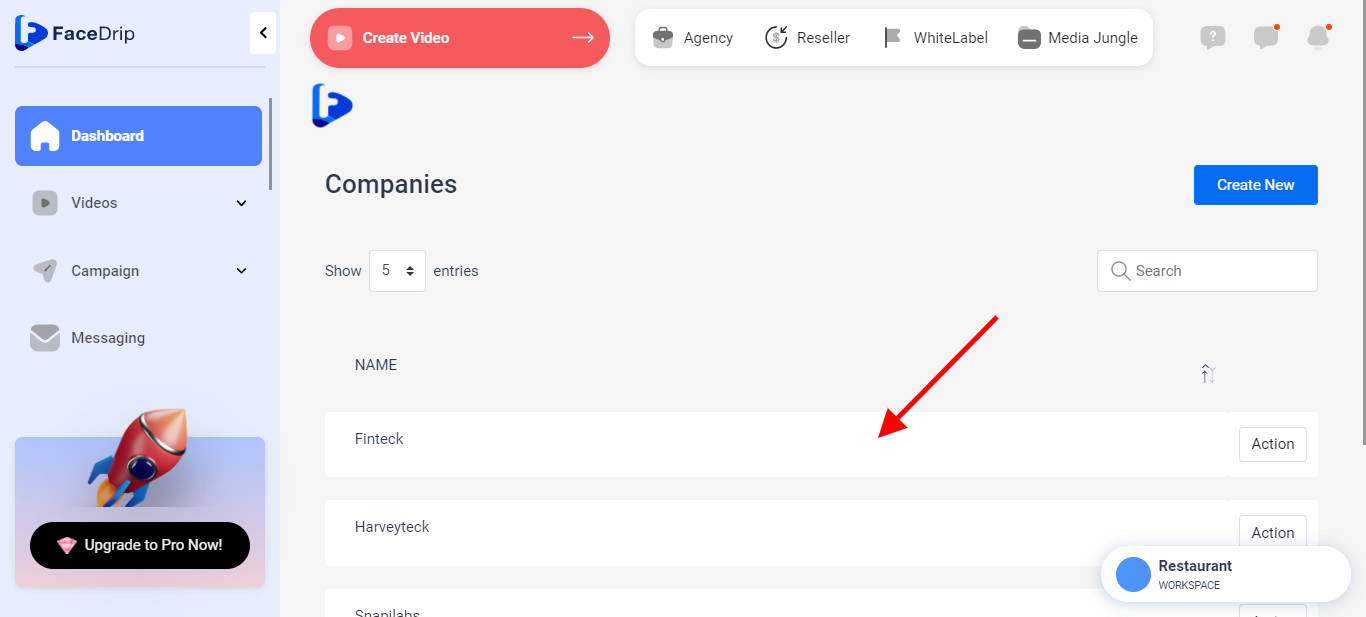
Log in to your Facedrip account.
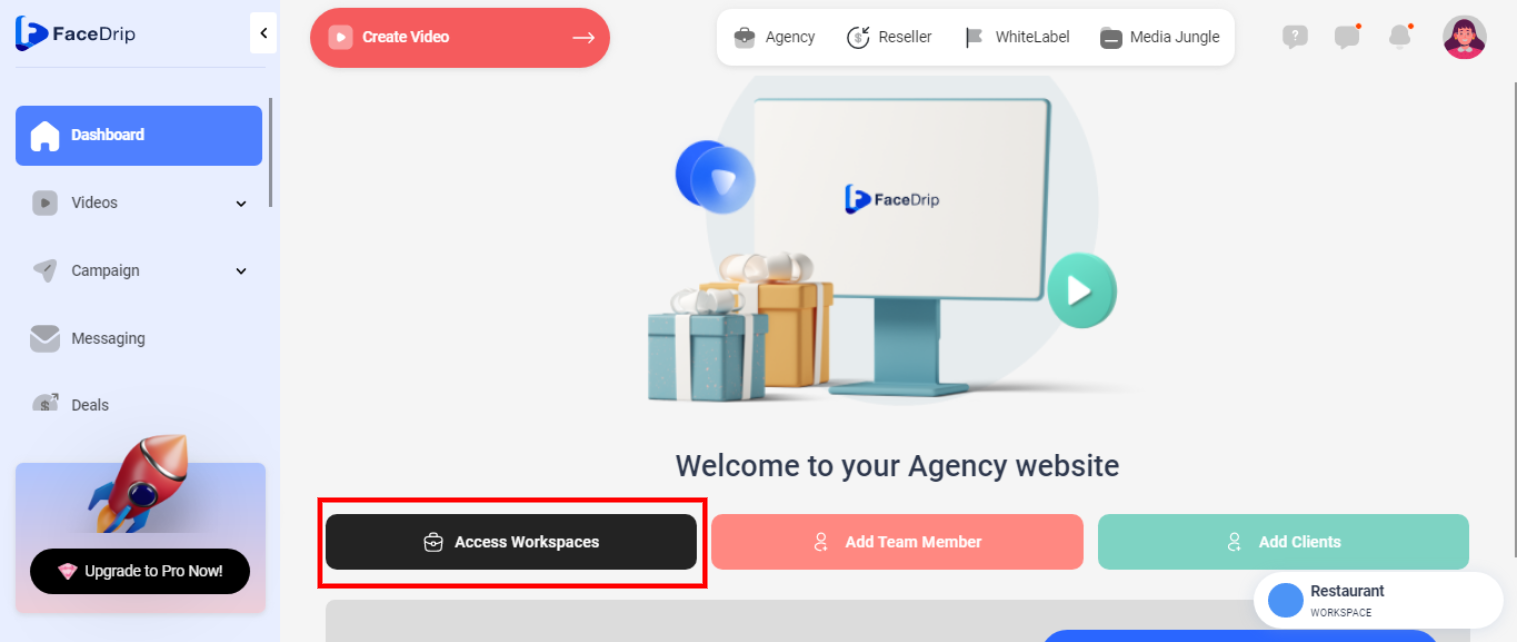
STEP 1: Click on the “agency”on the top side menu bar of your dashboard.

STEP 2: Click on “workspace” in the options below.
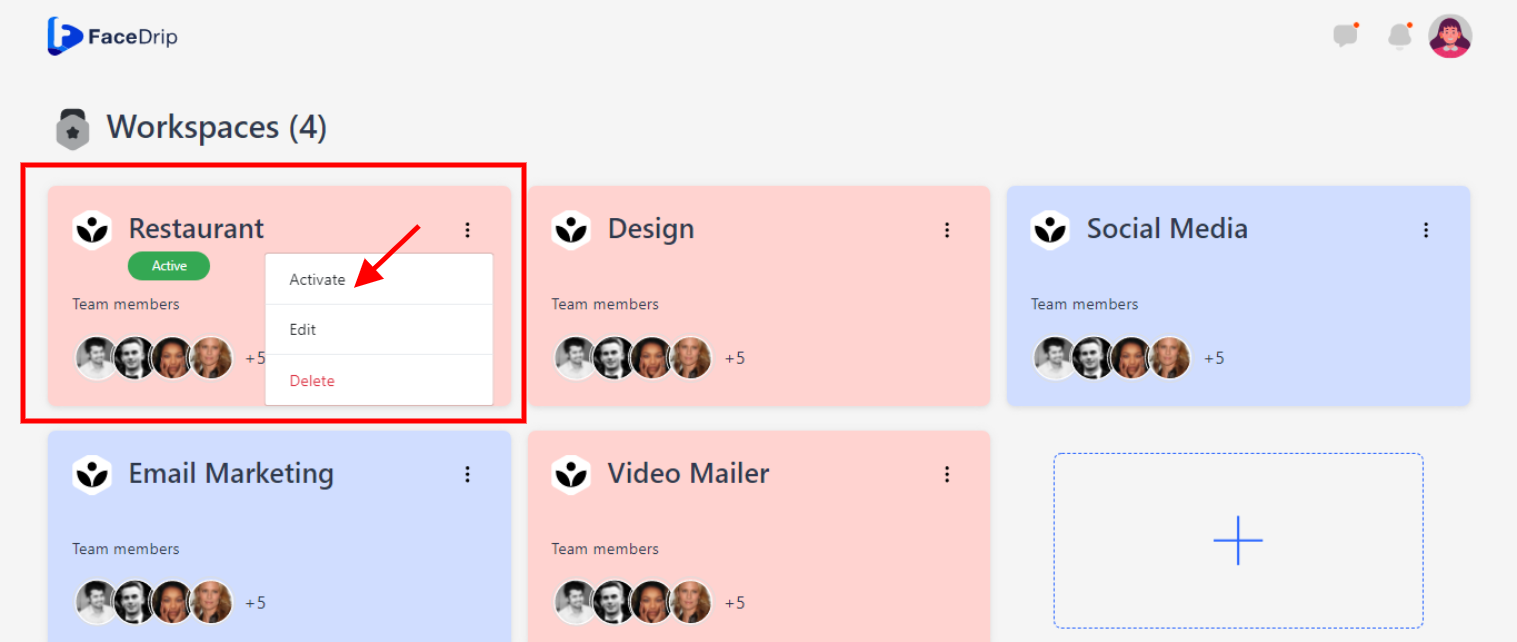
STEP 3: Choose the workspace you want to update your new company and click the “activate workspace” button.
Your workspace will be activated successfully! (PS: Go back to your dashboard module to see the active workspace).
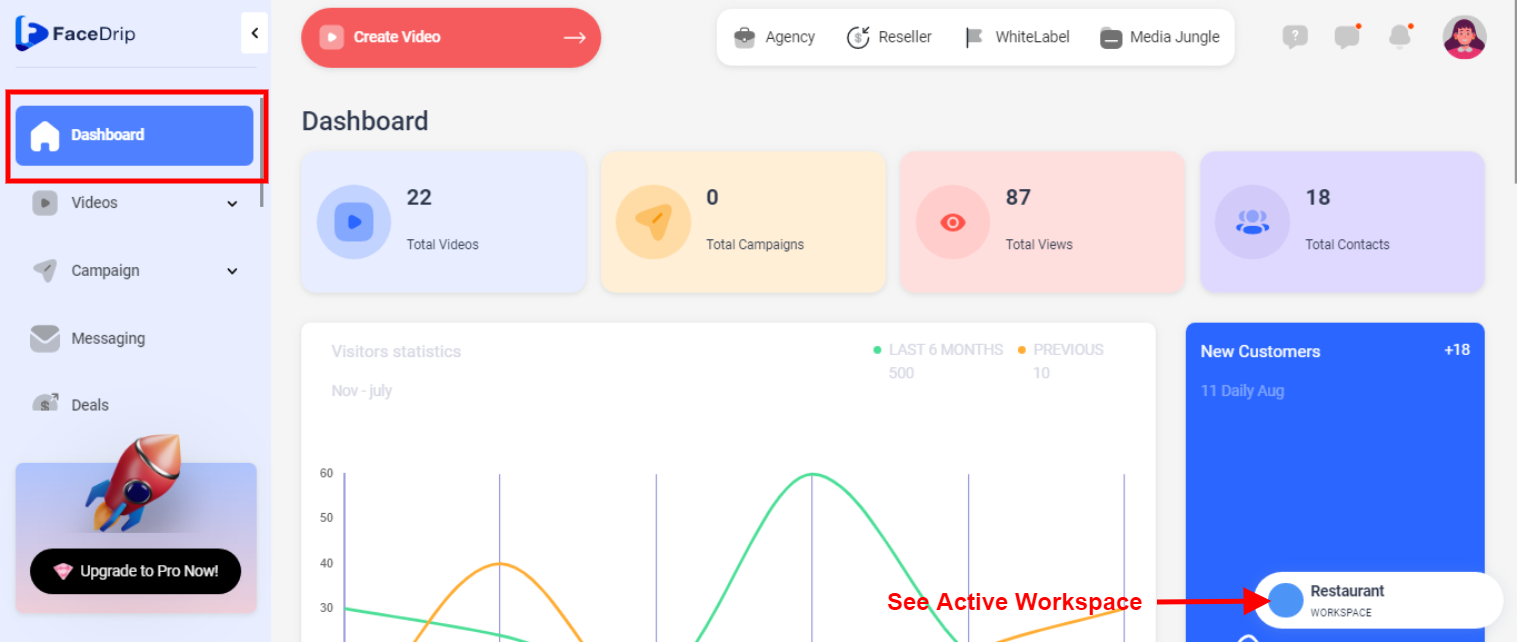
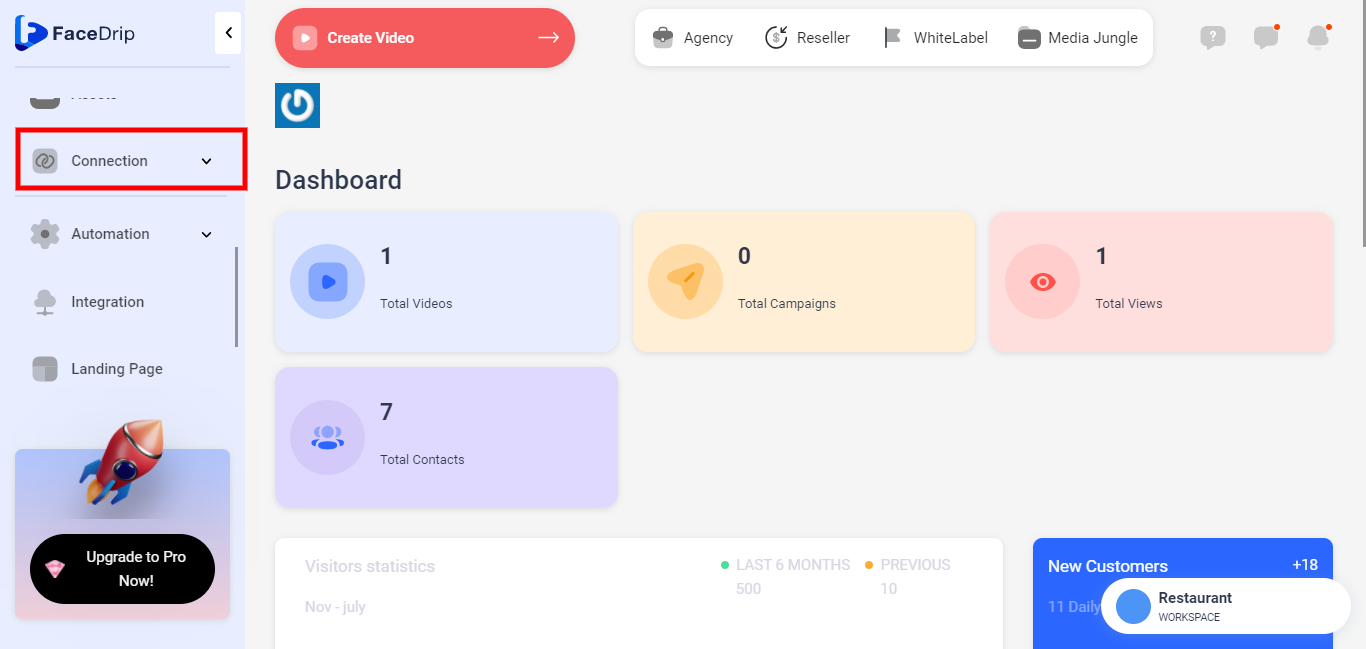
STEP 4: Click on “Connection” on the left-hand side menu bar of your dashboard.
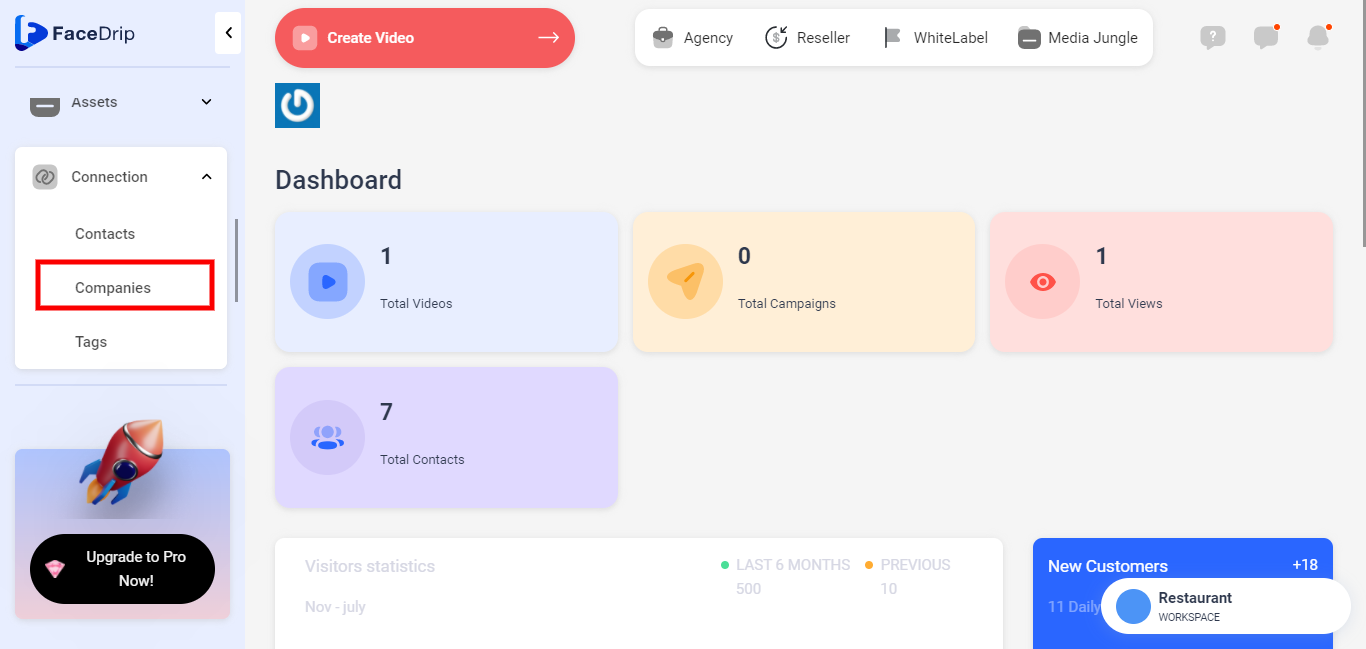
STEP 5: Click on “Companies” in the drop-down options. (follow dis link on How To Create New Company)
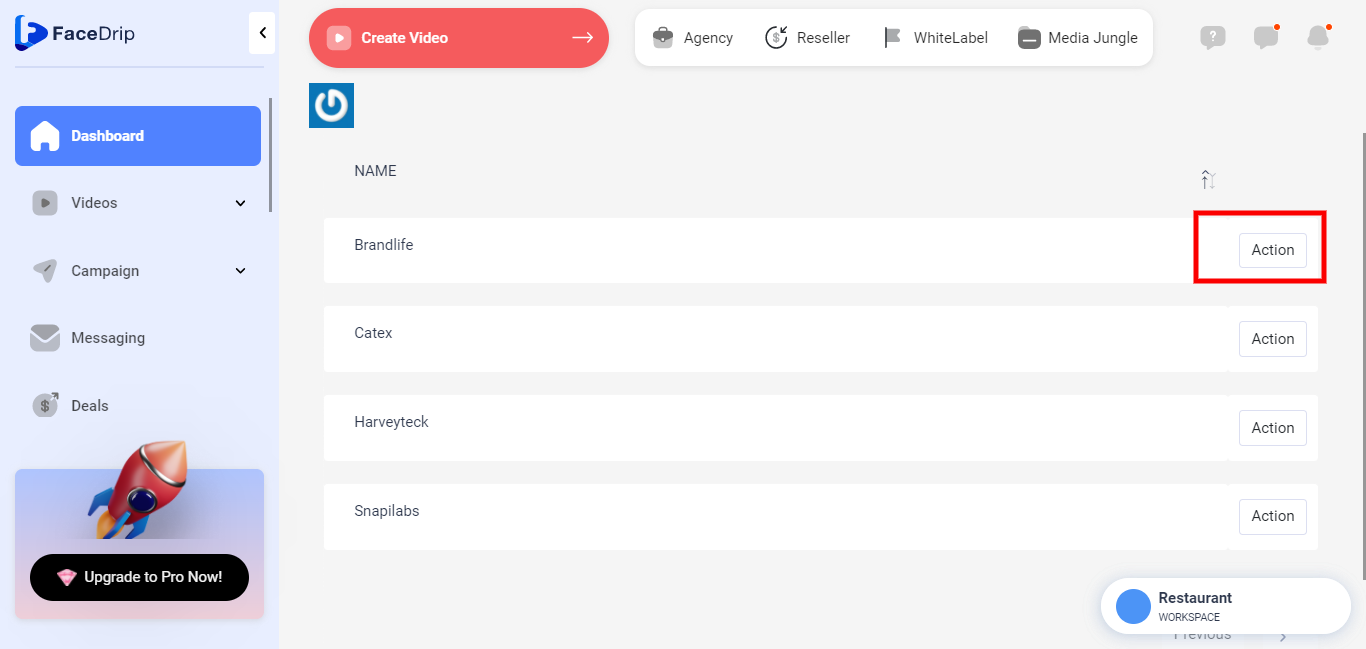
STEP 6: Click on the” Action Button”
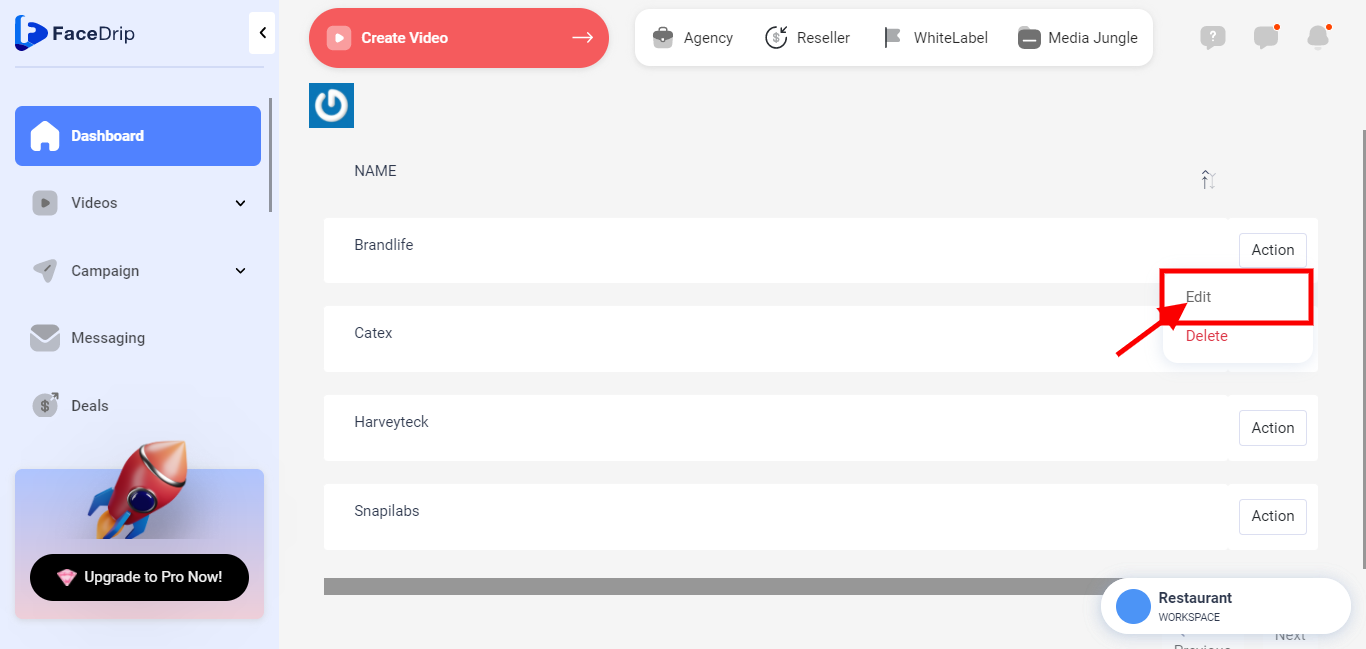
STEP 7: Click on the “Edit Button”
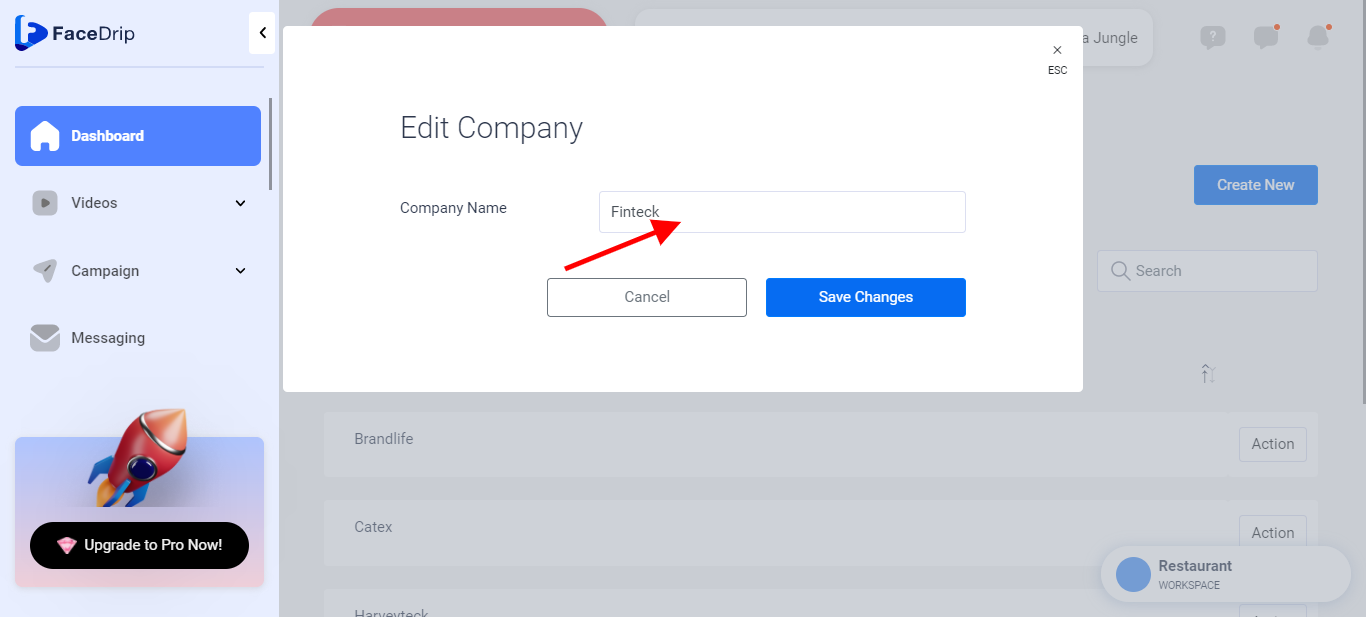
STEP 8: “Update” companies name
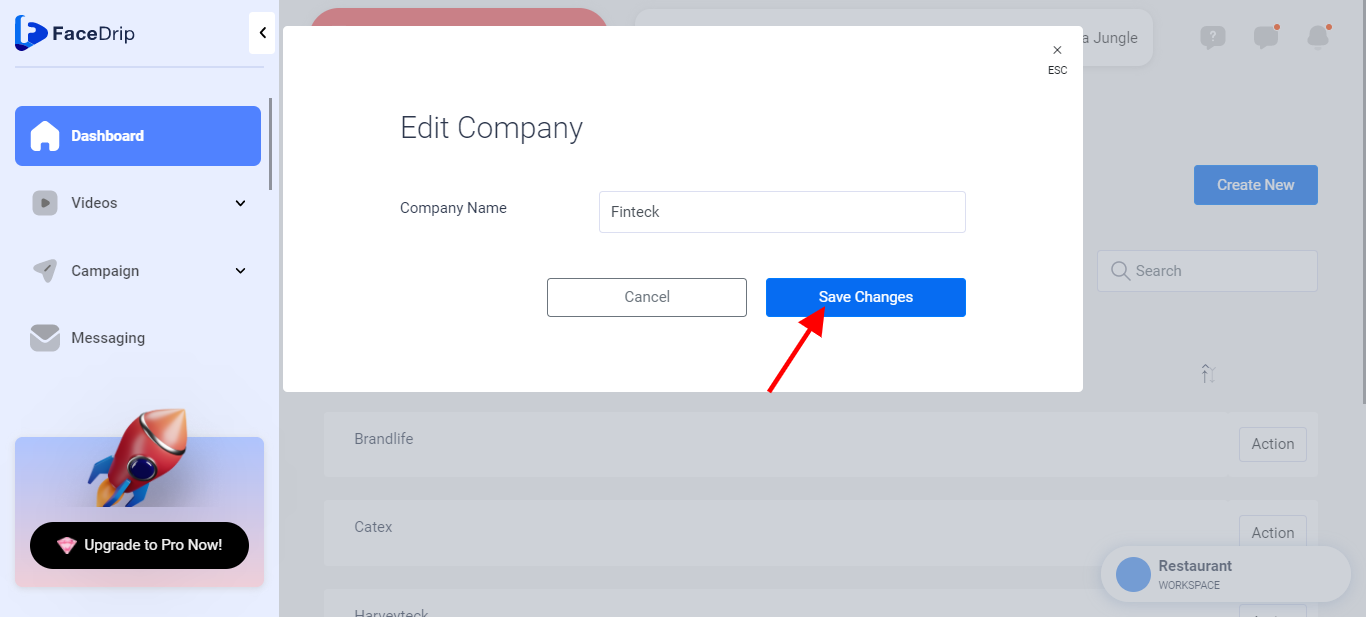
STEP 9: Click on “Save Changes”
Note: A success message alert will pop up saying ” companies name was updated successfully. therefore, refresh the page and changes will be effective
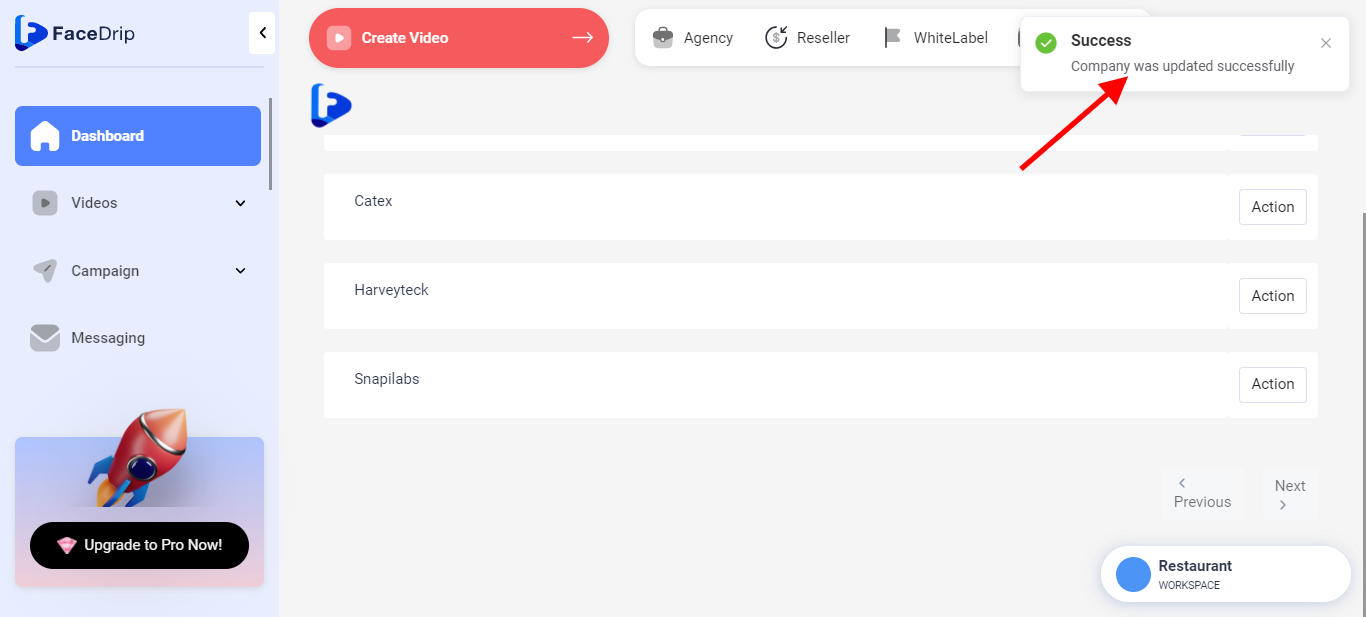
Refresh your dashboard and changes made will be effective